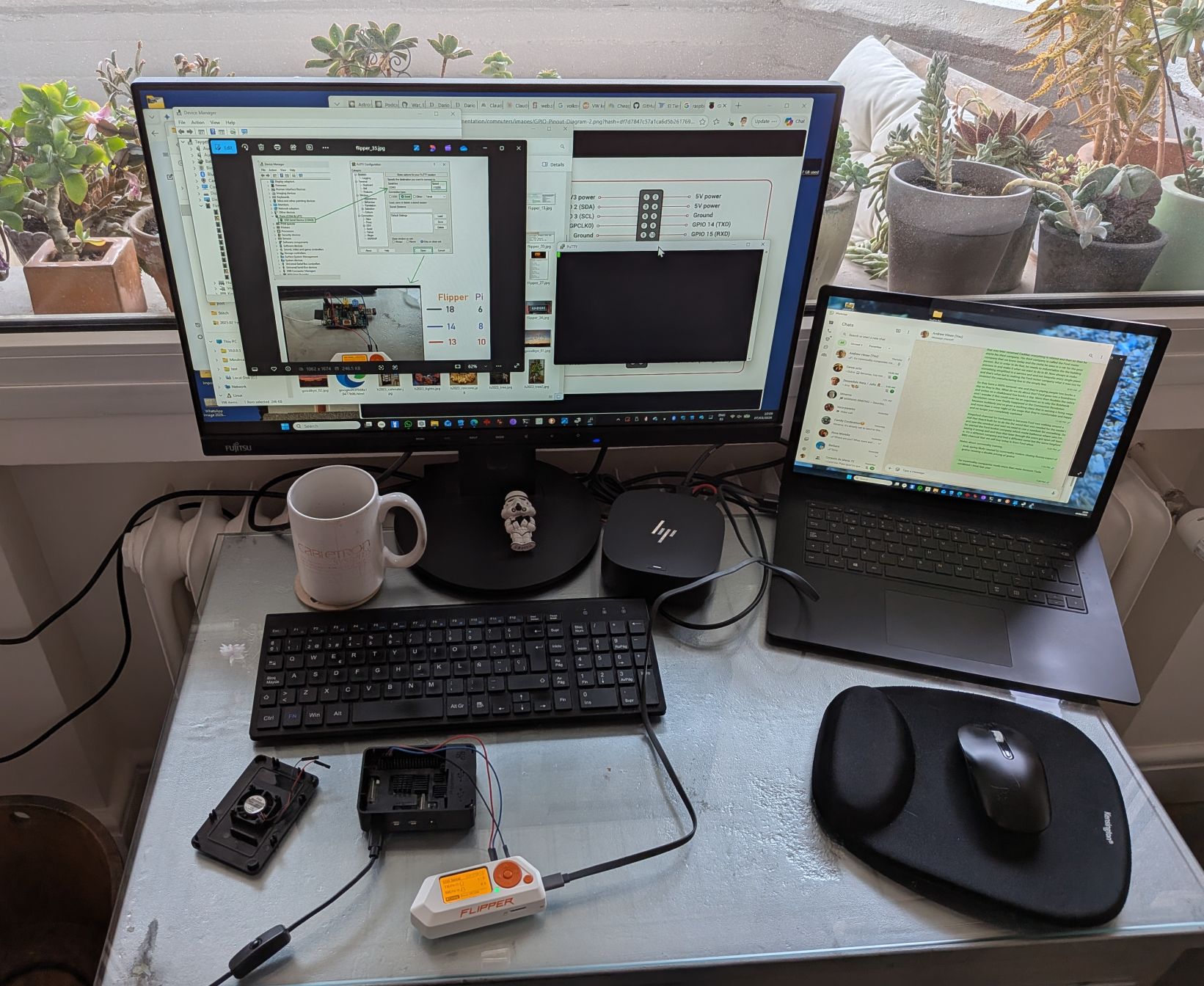
That was exciting! Yesterday morning I was having saturday morning coffee in bed doing a bit of prompt driven development to add weather predictions to my Remarkable sleep screen when suddenly weird things started happing on Ersa, a Raspberry Pi 4 Model B that hosts everything in my house including this blog. By weird I mean I was trying to create a new file but said it was a read only file system. I figured I had run out of space, but was not the case, so I opted for a “windows” solution: reboot. And that was all she wrote and Ersa did not come backup. The picture above is the open heart intervention on Ersa trying to figure out what was going on. Read on for the frantic recovery actions and a incident postmortem retrospective to ensure this learning experience leads to improvements!
Triaging and figuring out what we are dealing with
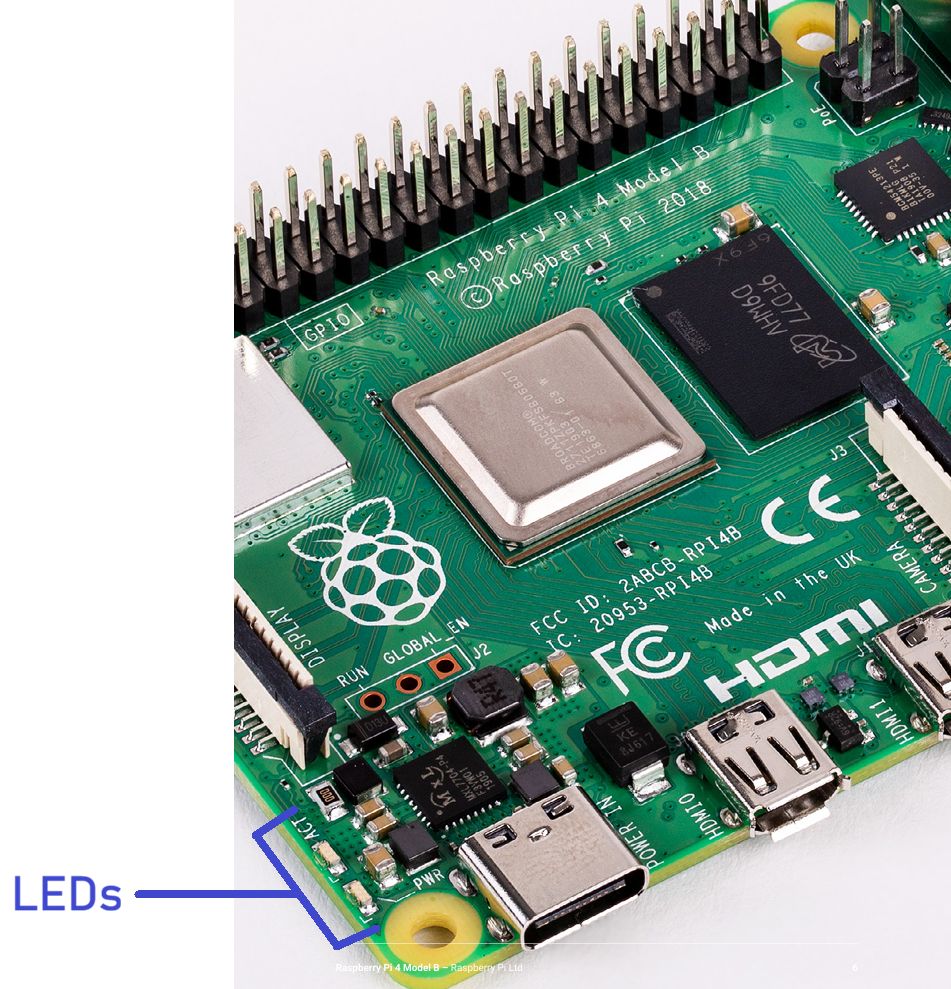
At first it was unclear what the heck was going on and why Ersa was not booting. This was complicated by the fact the the Raspberry Pi 4 Model B has micro HDMI connectors and I could not find any adapter or cable to connect it to a monitor. I fortunately just this week I had tested using my Flipper Zero as a UART console connection to a Raspberry Pi. Unfortunately it did not output anything on the console! I removed the case so I could observe the lights on the device and saw that single red light on bottom left corner and activity light blinked briefly when providing power but then nothing. Removing the microSD card and providing power I saw the activity light stayed green and the power light also constantly on. Here is a picture of the LEDs in question:
Conversations with ChatGPT concluded that the most likely situation was that microSD card had worn out which is a common problem. Given the current RAM shortages a microSD failure would be a the best case scenario because had it been a hardware failure trying to get a new Raspberry Pi could be difficult and expensive given the current RAM shortages.
Trying to recover microSD card
The first action was to try and see if it was a simple as doing a disk check on the microSD and recovering it. For this I used a Raspberry Pi Model A with console access via my Flipper.
First we confirmed that the card was seen (it is the sda):
lsblk
NAME        MAJ:MIN RM   SIZE RO TYPE MOUNTPOINT
sda           8:0    1  58.2G  1 disk
├─sda1        8:1    1   256M  1 part
└─sda2        8:2    1    58G  1 part
mmcblk0     179:0    0   120G  0 disk
├─mmcblk0p1 179:1    0   256M  0 part /boot
└─mmcblk0p2 179:2    0 119.7G  0 part /
But unfortunately the device was in read only mode (RO = 1). In my converstation with ChatGPT it confirmed that when “microSD cards start to fail or reach the end of their lifespan, they frequently enter a permanent read-only mode. Yes, when microSD cards start to fail or reach the end of their lifespan, they frequently enter a permanent read-only mode.”
That is something I was not aware of but, better to do a controlled failure allowing recovery of files!
Backing up the microSD card
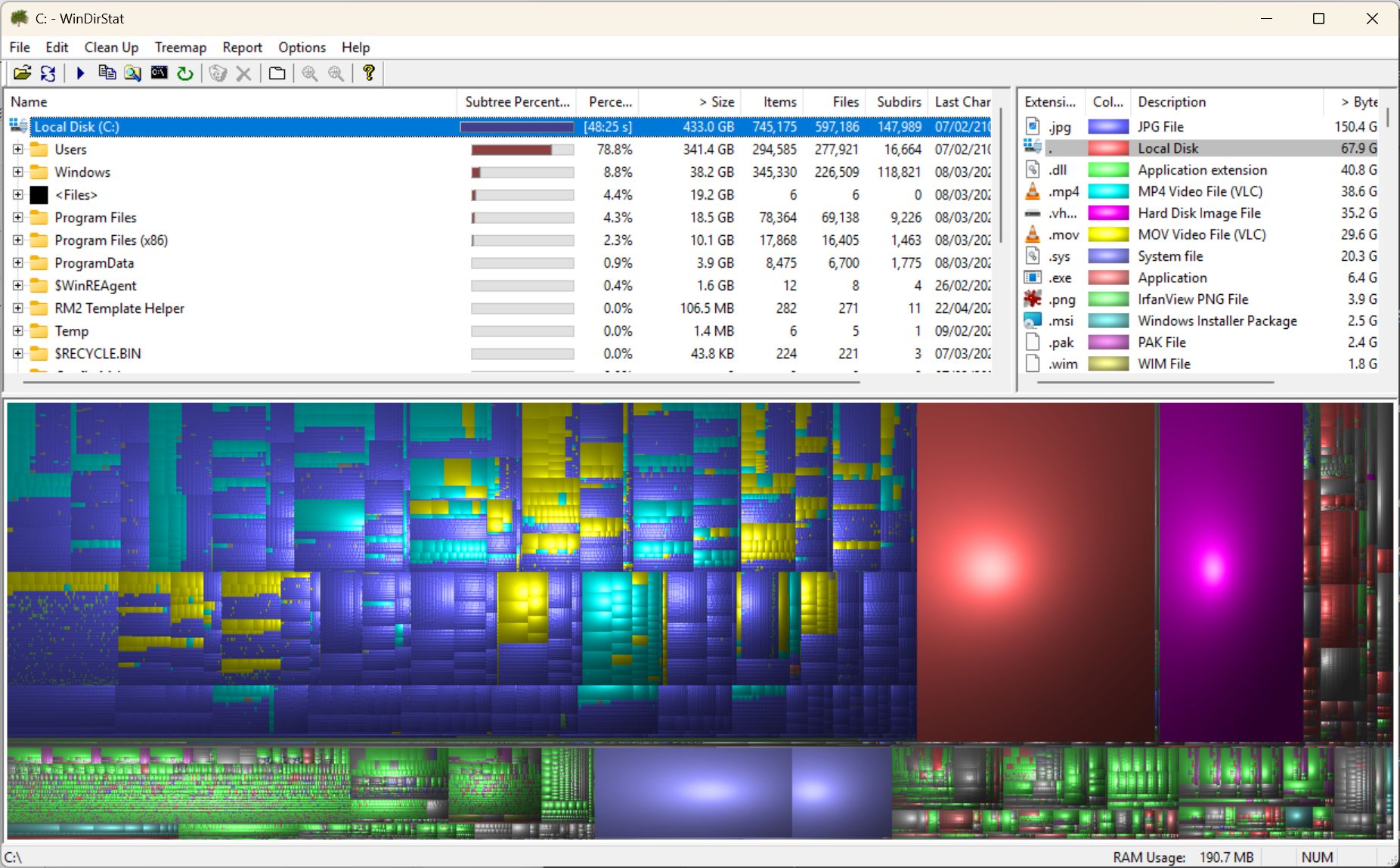
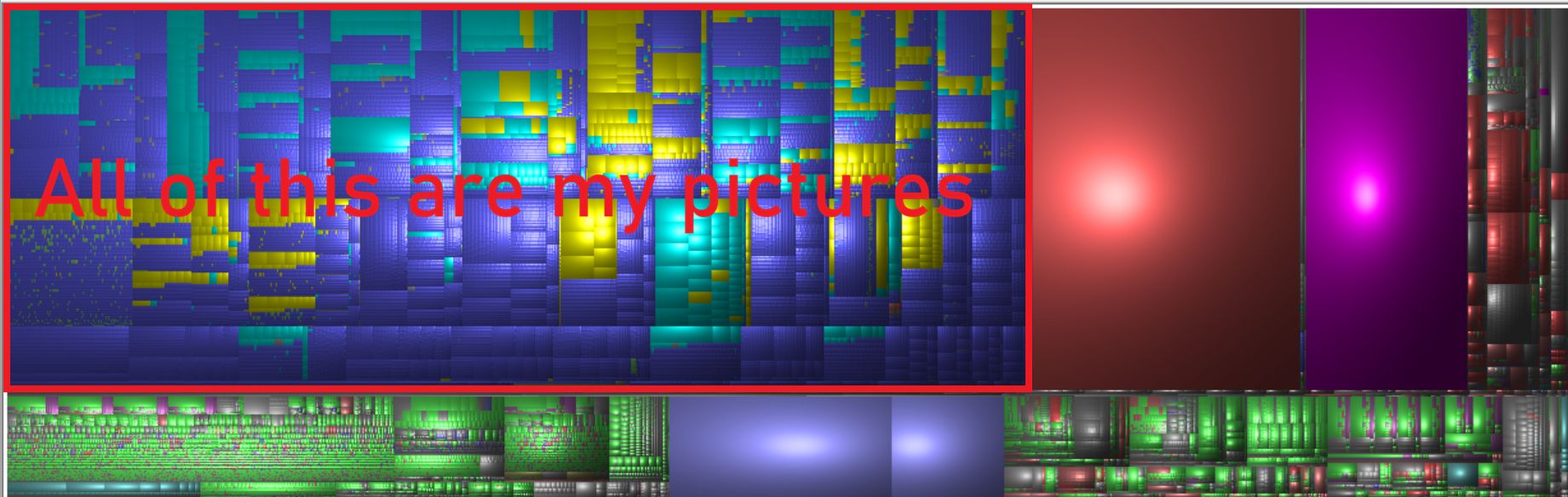
So seeing how the card was readable the recommendation was to make an image of it that could then be written to a new SD card. Unfortunately my home computer literally had only 2GB of space free so that began a frantic cleaning, uninstalling, and deleting all sorts of old crap trying to free up 64 GB. Which was not easy and took quite a while but here WinDirStat was a life saver because it gives you a visual representation of you hard drive making it easy to spot big chunks of space in use:
Once I was finally able to eek out enough space I used Win32 Disk Imager to make an image of the bad microSD card:
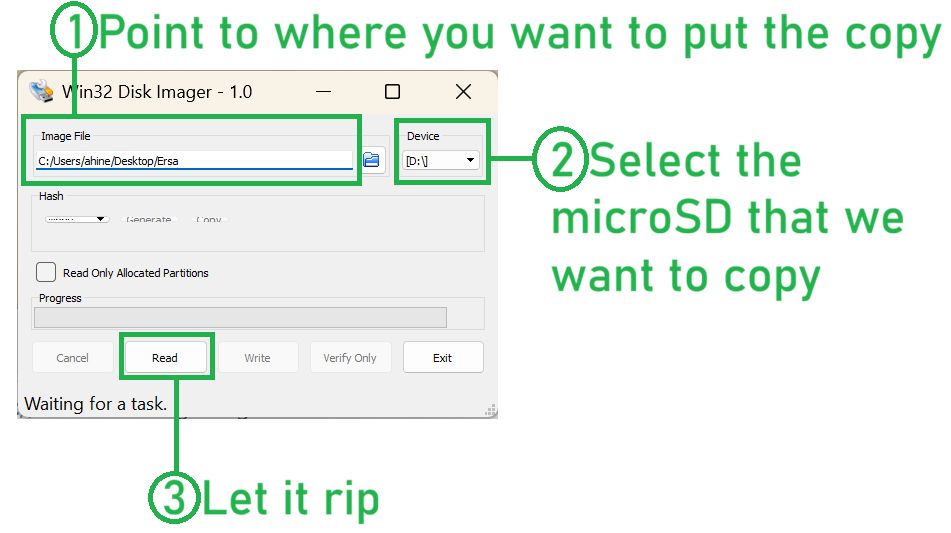
With my setup this took close to two hours, so in the mean time I setup a temporary webserver and copied last night’s backup of my blog so that at least the blog would work until I could get the Ersa back up.
Once you have the image it is the same as before, but instead of “Read” you “Write” and wait another couple hours.
Testing the new micoSD card
Needless to say I did not sit and watch the progress of the imaging being written to the new microSD, rather went out and enjoyed a rainy Madrid day having lunch with some friends who are visiting from the States and partaking in a bar crawl with drinking games and all sorts of fun. When I did arrive home I found the image had been written to the new microSD so I put it in the Raspberry Pi 4 Model B and fired it up. Quite honestly I did not expect it to work. But it did!!! And is still working as I write this! Phew! INC closed! Service back up!
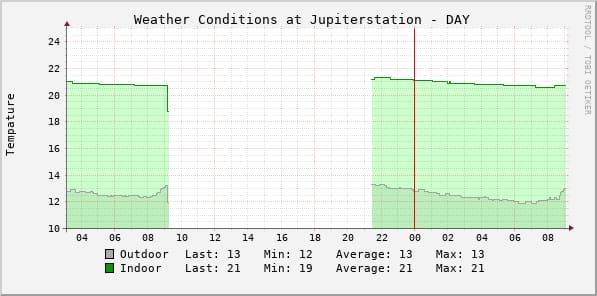
This morning I checked and all services seem to be operational and working and from my temperature graphics I can see the Ersa outage was from about 9am until 9pm:
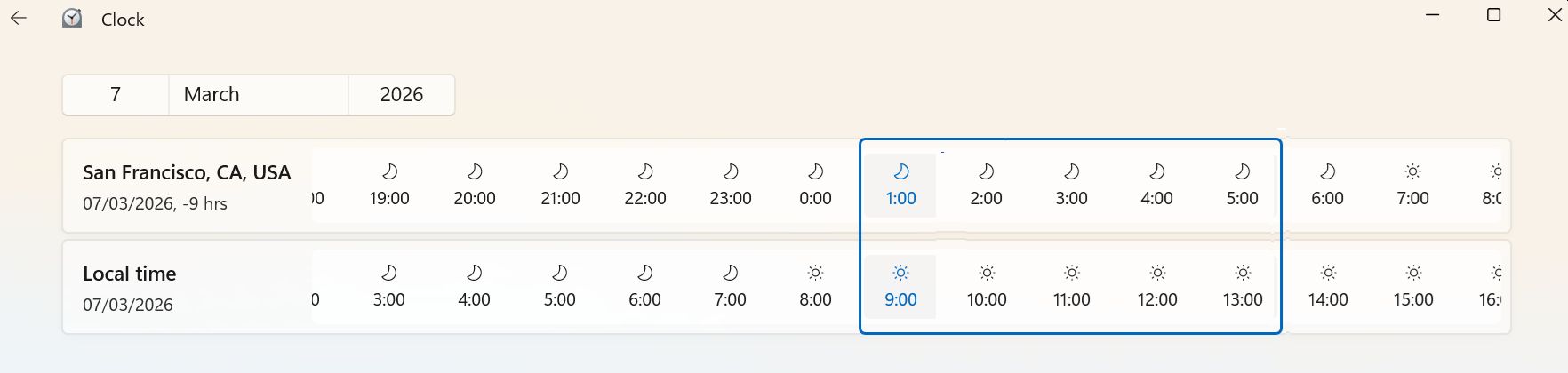
Fortunately the public facing blog outage was only from about 9am to 1pm, so the impact for my blog audience (my Dad) was minimal given the outage fell during his sleeping hours:
Lessons Learned and action items
1. Very good that I had a backup of Ersa. This is a crontab task that I setup when I first configured the server, and had pretty much forgotten about it, so I am so happy it continued to work and had not just failed a couple of years ago unnoticed.
2. I need to investigate why the UART did not work on the Raspberry Pi 4 Model B
- Update: for some reason it is disabled by default and I needed to add these lines to the end of the /boot/config.txt:
[all]
enable_uart=1
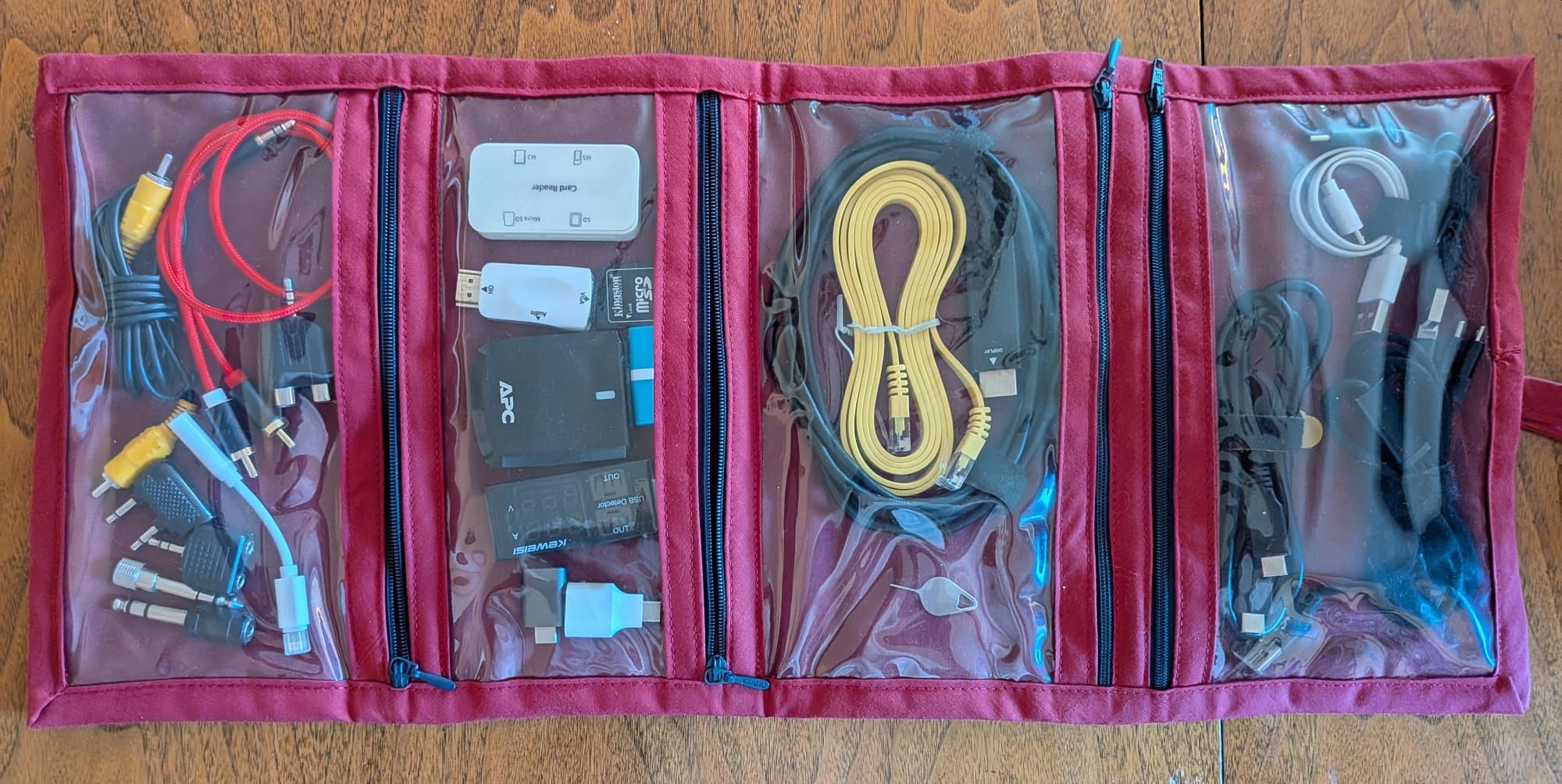
3. I need to locate my microSD converter and add it to my very cool nerd bag that Cuca made me:

4. I need to investigate and figure out solution to have more space on my windows computer. The real problem is that I have all my pictures that occupy 221 GB of space and continue to grow daily:
5. I need to investigate an alternative to microSD cards seeing how they are a known point of common failure and not really suited to this usage
- Update: after consultation with the AI chatbots the recommendation was a SSD as they are more robust and built for higher utilization where as microSD cards were originally built for occasional writes like one would have with a digital camera. Searching on Amazon I was able to get the following for 21€, which was considerably less then a 64 GB micrSD from a reputable manufacture:
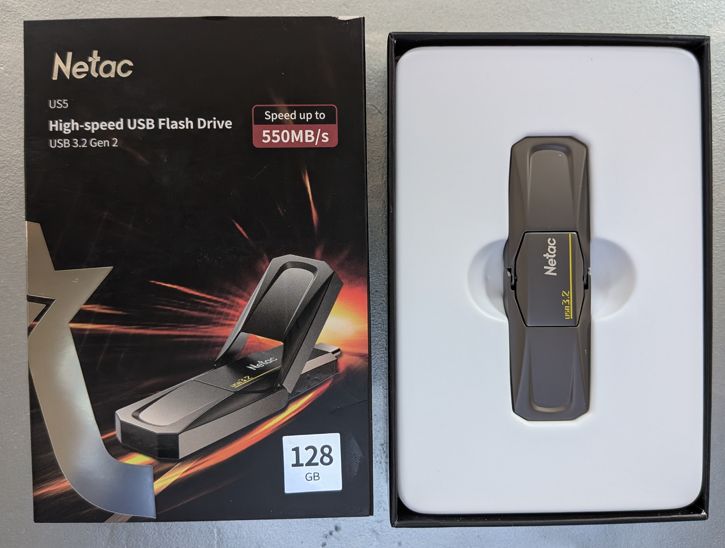
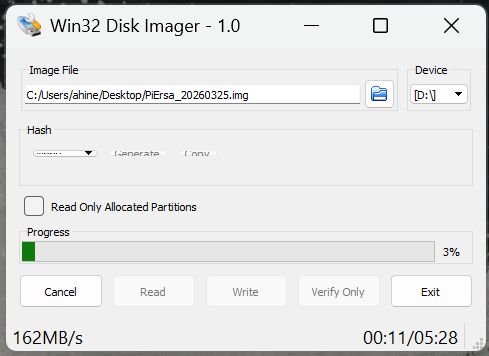
Not sure how long it will last, but it is way faster then the microSD as we can see here when I wrote the image to it it took 5 minutes where as the microSD took almost 2 hours:
Wrap up
So now that Ersa is backup I need to get back to getting the weather report added to my Remarkable’s sleep screen!
Links, References and things that helped with this
- Programs:
- Linux commands to check the corrupt microSD:
- List block devices:
lsblk - Show last 30 system messages (where I saw also the microSD was being mounted read only):
dmesg | tail -30 - Disk check and repair command (this failed in this case as the microSD was read only):
sudo fsck -fy /dev/sda2
- List block devices:
Thanks for reading and feel free to give feedback or comments via email (andrew@jupiterstation.net).