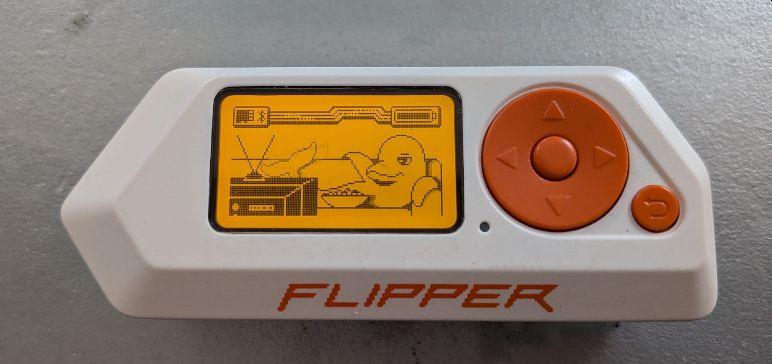
A while ago I saw a post where this guy did 50 different things with his Software Defined Radio (SDR) and I thought it was a really great idea to push something to the limit and explore it fully. So I have been wanting to do the same for my Flipper Zero, a “caprichho” (an extravagance or something I really did not need) that I bought over a year ago, and had fallen into the what I had seen people claiming on the internet: they were only using it as an over priced replacement for a remote control.
Unfortunately when I started this post and before researching my faulty memory remembered it as 101 things to do with SDR but in fact it was 50, but I already had started the post and although I almost certainly will set myself up for failure, but I will leave it at 101 uses for a Flipper!
The only caveat is that I will post this today (01/02/2026) with the tests I have done so far, and continue to add more as I go, updating this time stamp every time I add something: last update 04/03/2026.
Read on what will surely go down as my opus magnum!
001: Getting to know my Flipper Zero
So maybe I should start off by enumerating all the features that the little cetacea has so we can prime the pump and get ideas on the other 100 uses we will find for it!
All this information has been taken directly from the Flipper Zero website in Jan 2026:
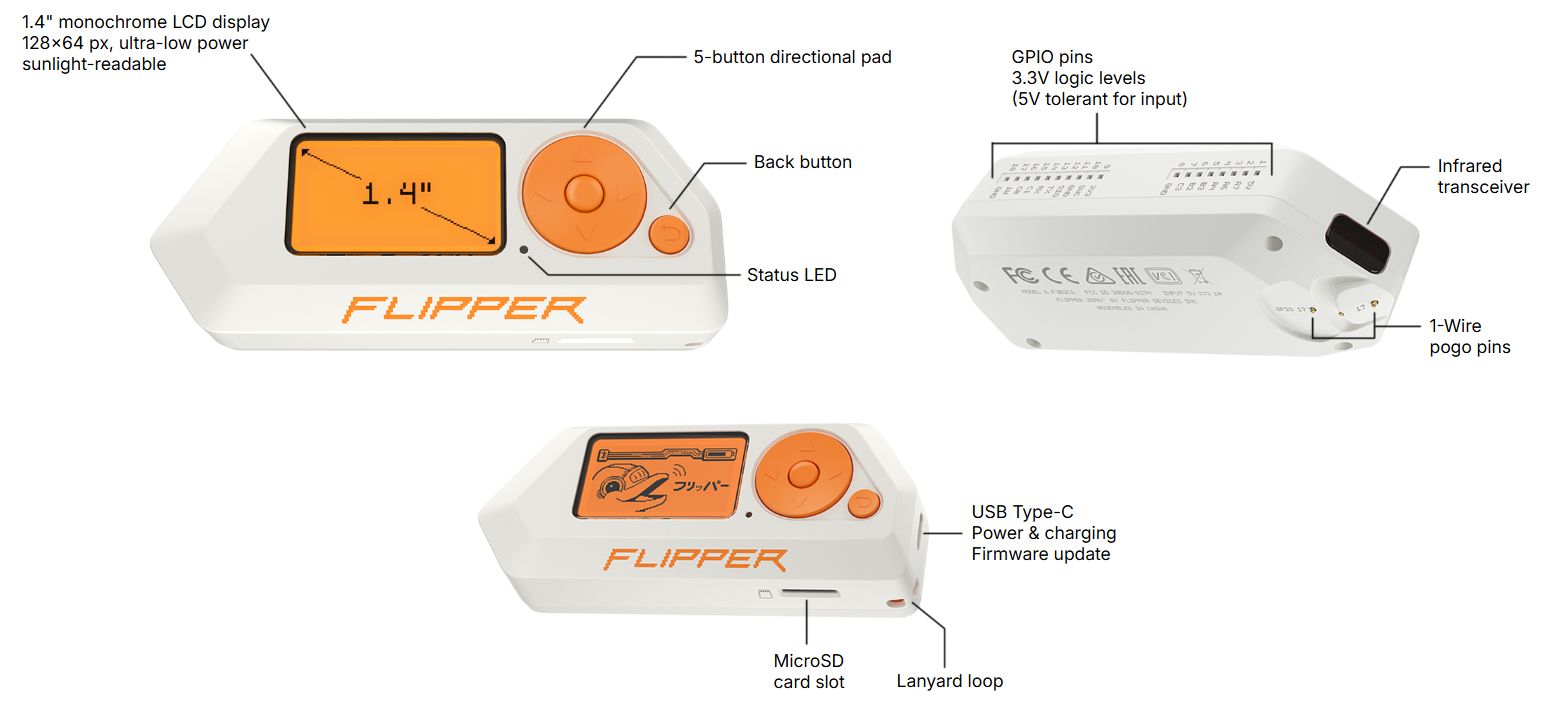
Tools:
- Sub-1 GHz Transceiver:
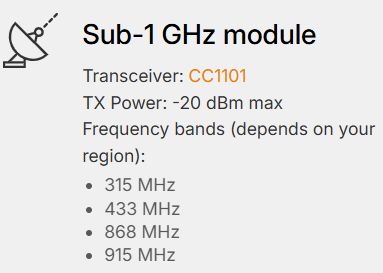 This is the operating range for a wide class of wireless devices and access control systems, such as garage door remotes, boom barriers, IoT sensors and remote keyless systems.
 - 125 kHz RFID:
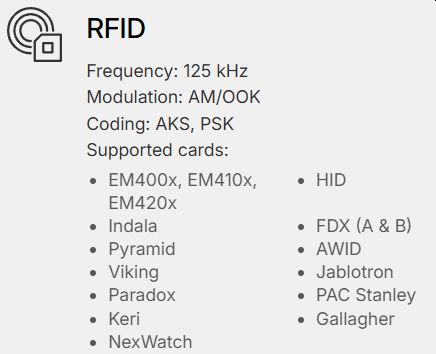 This type of card is widely used in old access control systems around the world. It’s pretty dumb, stores only an N-byte ID and has no authentication mechanism, allowing it to be read, cloned and emulated by anyone. A 125 kHz antenna is located on the bottom of Flipper Zero — it can read low-frequency proximity cards and save them to memory to emulate later.
 - NFC:
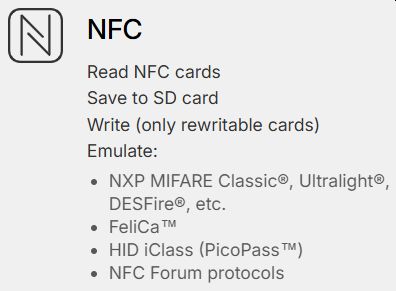 A built-in NFC module (13.56 MHz). A The NFC module supports all the major standards allowing you to interact with NFC-enabled devices — read, write and emulate HF tags.
 - Infrared Transceiver:
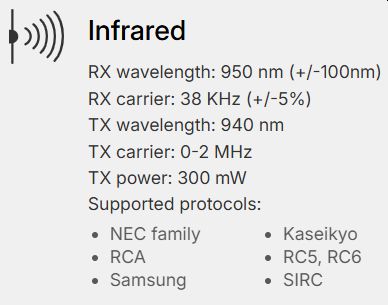 Can transmit signals to control electronics such as TVs, air conditioners (AC), stereo systems, and others.
 - iButton:
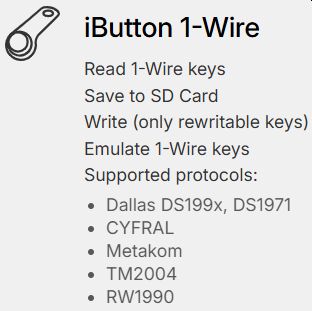 built-in 1-Wire connector to read iButton contact keys. This old technology is still widely used around the world. It uses the 1-Wire protocol that doesn’t have any authentication. Flipper can easily read these keys, store IDs in the memory, write IDs to blank keys and emulate the key itself.
 - Bluetooth:
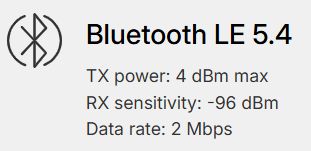 Full Bluetooth Low Energy (BLE) support allows Flipper Zero to act as a peripheral device, allowing you to connect your Flipper Zero to 3rd-party devices and smartphones.
 - GPIO:
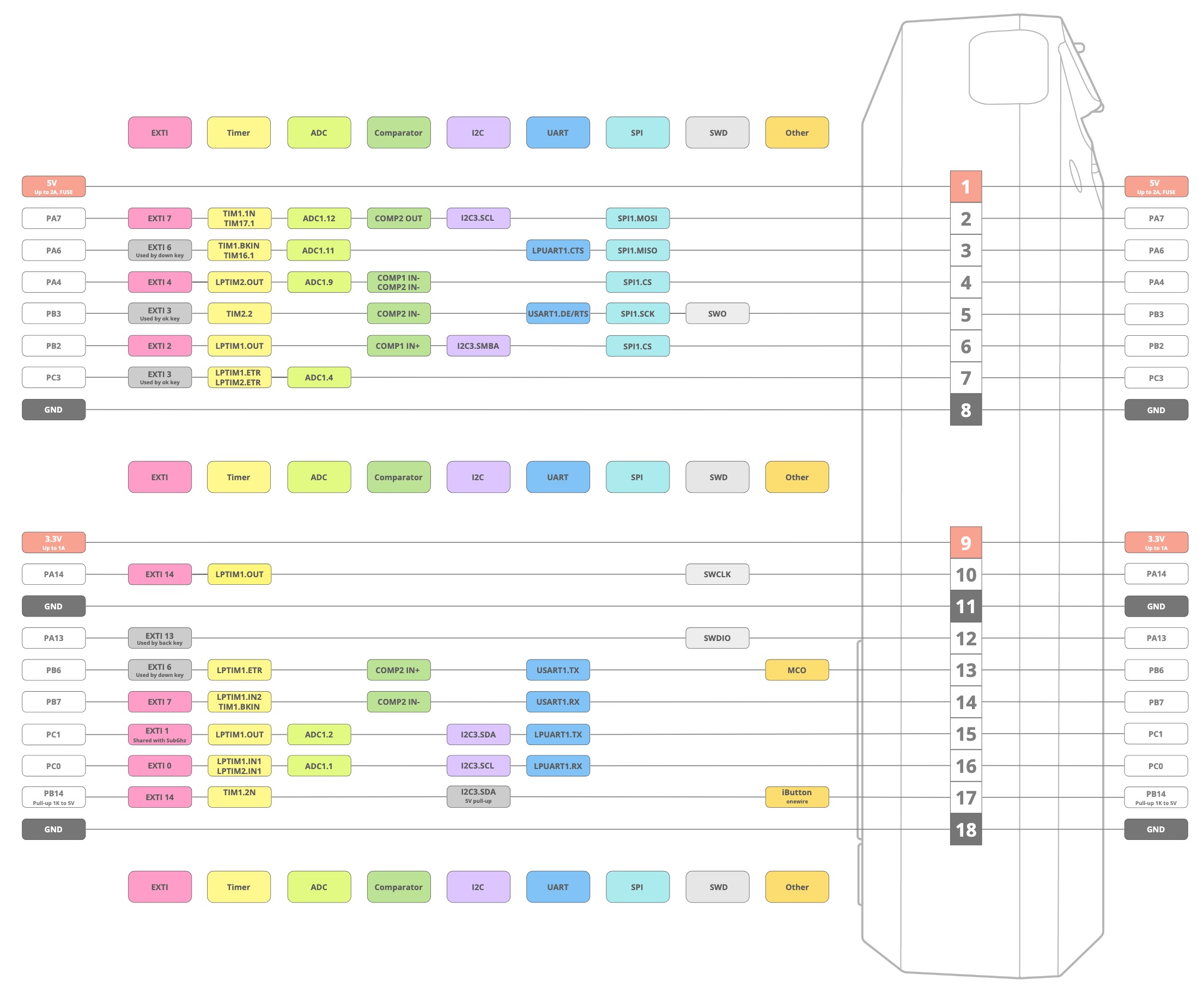 It can be connected to any piece of hardware using GPIO to control it with buttons, run your own code and print debug messages to the LCD. It can also be used as a regular USB adapter for UART, SPI, I2C, etc.
002: Pair with my mobile and Flipper Zero app
So we should probably start with the basics and advance from there. The Flipper Zero has a great little screen but also nice to interface and control it from a phone via the Flipper Mobile App. So you just install the software and have it search the bluetooth spectrum it and then pair with the flipper:
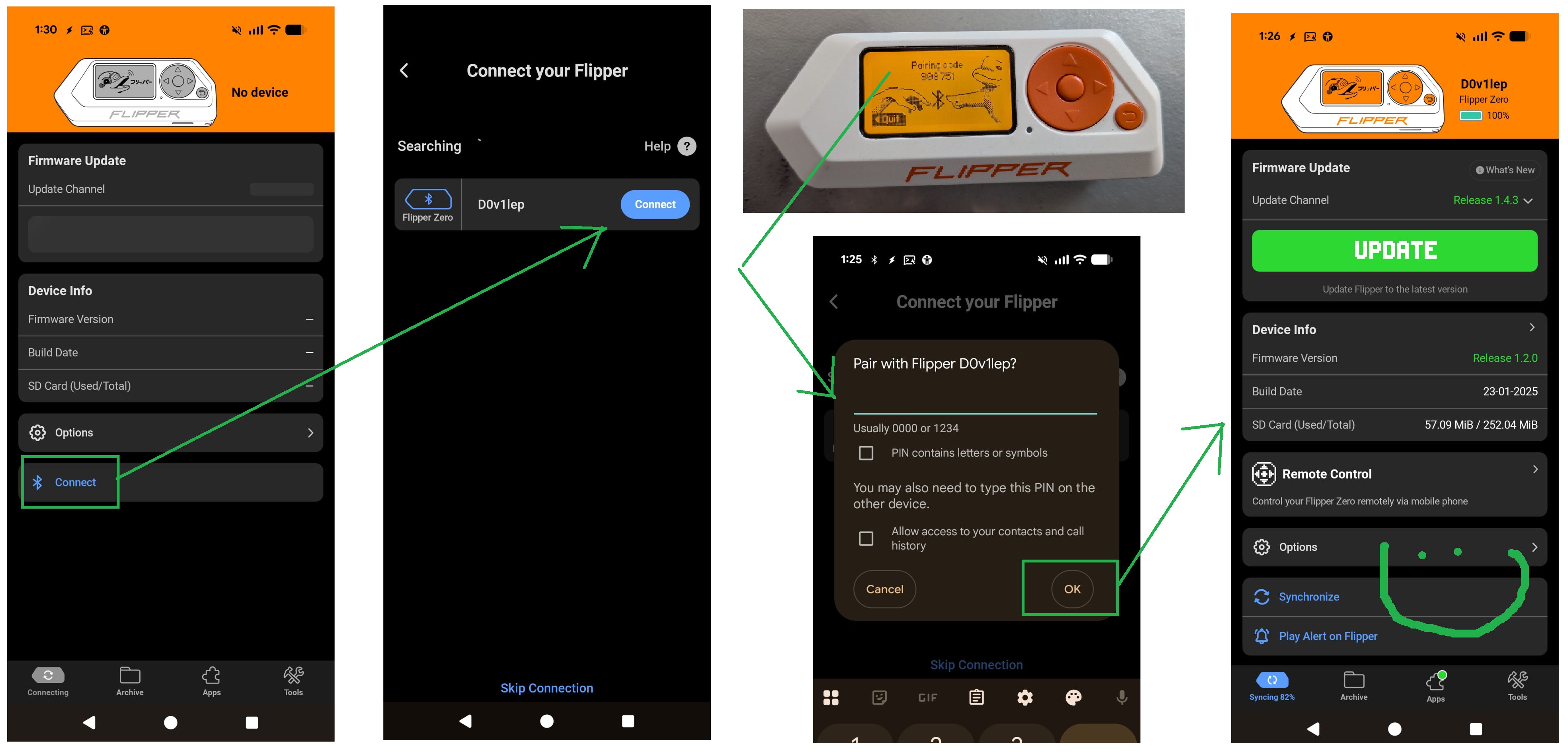
The android app supports these features:
- Firmware and database update
- File manager
- Online file sharing
- Apps Catalog
- Remote control of Flipper Zero
003: Upgrade the firmware
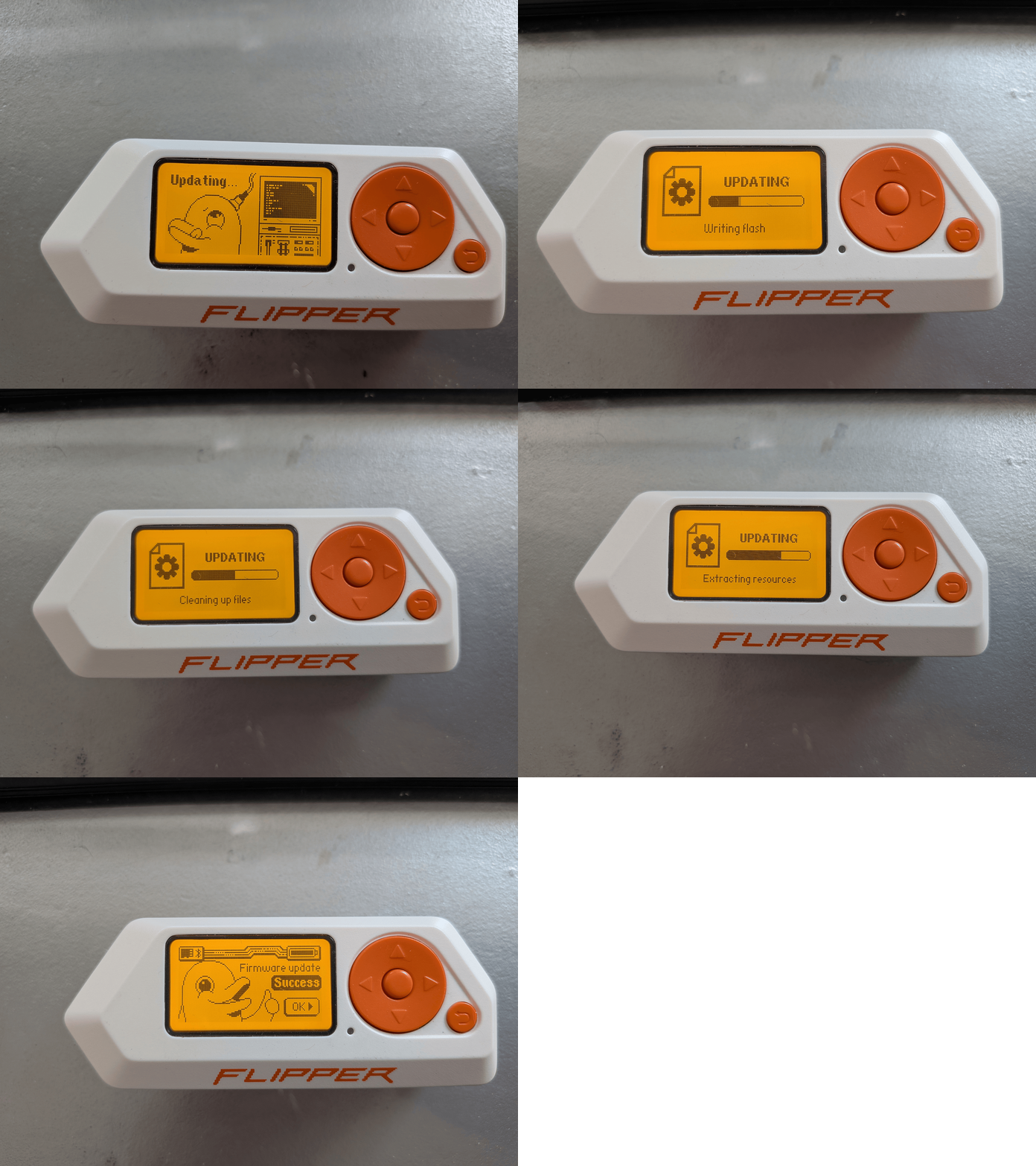
Upgrading the firmware via the Flipper Zero app is a point, click, and wait simple affair:
004: qFlipper — desktop application for Flipper Zero
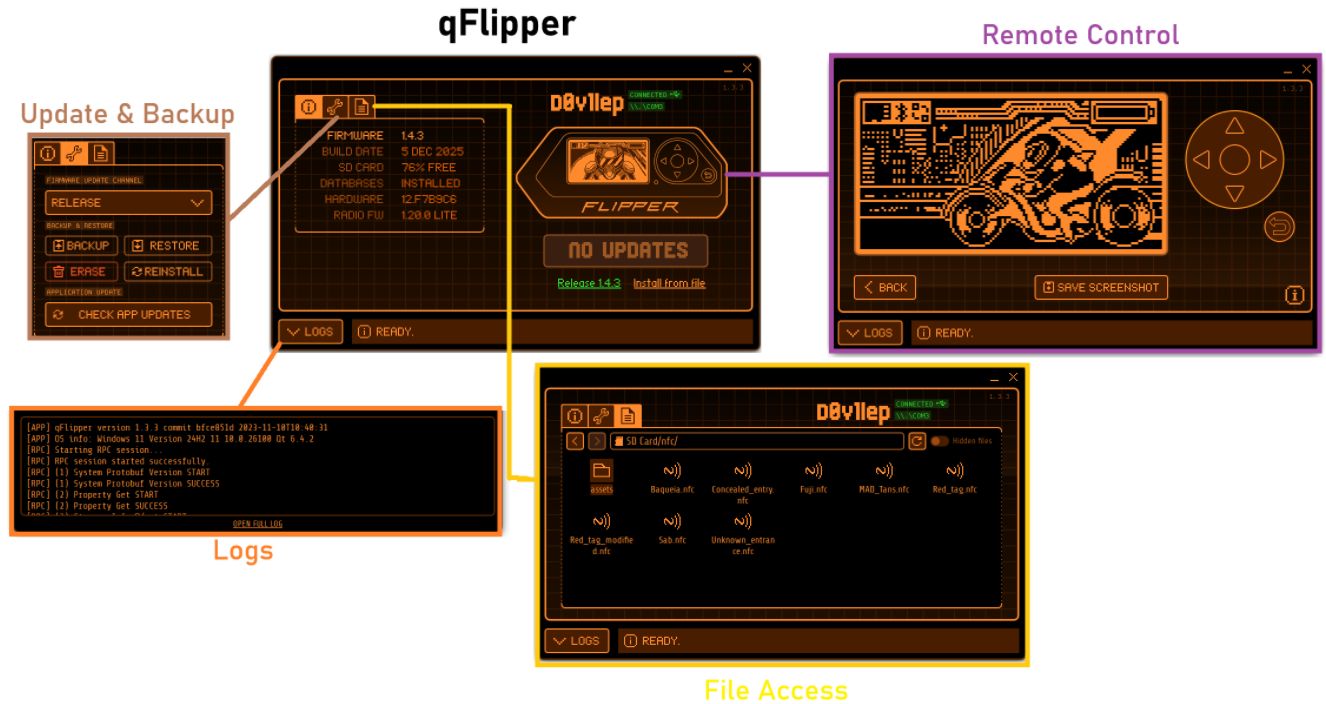
While trying to get files on and off the Flipper Zero I realized it would be easier with a desktop app so I installed the qFlipper desktop application supports these features:
- Firmware and database update
- Device recovery
- File manager
- Remote control of Flipper Zero
- Backup and restore settings and user data
Here is what it looks like and the different features:
So now the only question to answer is why is the application called “qFlipper”? Would appear that it is because Qt (pronounced “cute”) a cross-platform software framework, was used to develop the application’s graphical user interface (GUI). This framework allows the app to run natively on Windows, macOS, and Linux. So now you know!
005: RFID: Animal RFID chip reader
Here in Madrid our dog’s are RFID chipped so that in case they are found they can be tracked back to their owner.
I read the chip in both my dog and the spotty dog when I first got my Flipper but was unable to find my dog’s again (that is why the first picture is of one dog and then second another dog):
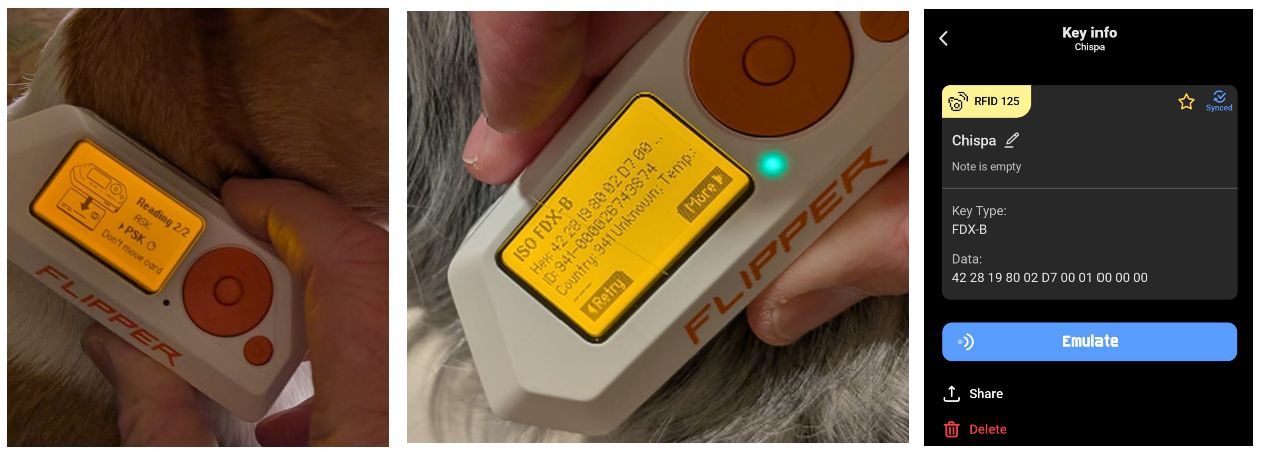
Cool! So I guess the first thing to understand is that the heck is ISO FDX-B? Well after reading the indicated Wikipedia article we see that it corresponds to two ISO standards: ISO 11784 (specifies the structure of the identification code) and ISO 11785 (specifies how a transponder is activated and how the stored information is transferred to a transceiver) .
Here in Madrid the animal’s ID is registered in RIAC (Registro de Identificación de Animal de Compañía) by the veterinarian that inserted the RFID chip. What is unclear is why both dogs have a country code of 941 because I am unable to find any reference to 941 in ISO 3166 rather Spain is 724. But at least I do see that for my dog ID coincides with the RIAC card that I have! Cool!
006: NFC: Read a NFC Chip
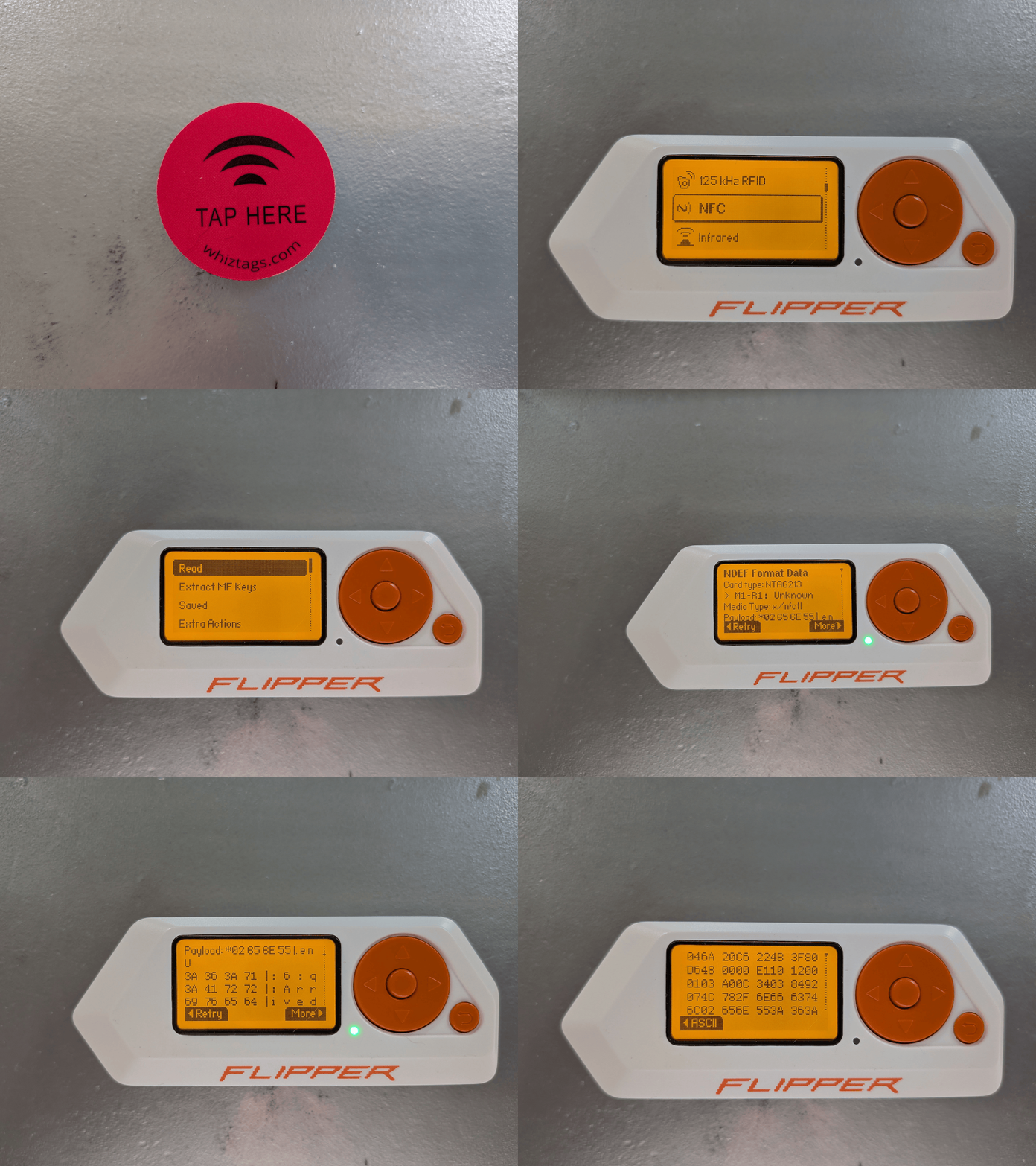
So long ago when I first got an Android device with NFC I got all excited about using NFC tags to automate different actions (for example scan a tag when I got into my car to commute to work and have it start playing NPR radio). Unfortunately at the time (not sure now) just to read the card it was needed to manually unlock the mobile, go to an app, and force it to scan the tag which was a series of actions more complicated than just starting the NPR app manually, so the tags never got used. So let’s use the little Dolphin to read one of the tags that I still have.
As you can see in the gif it is easy to read the tag, see the info, both in ASCII and Hex:
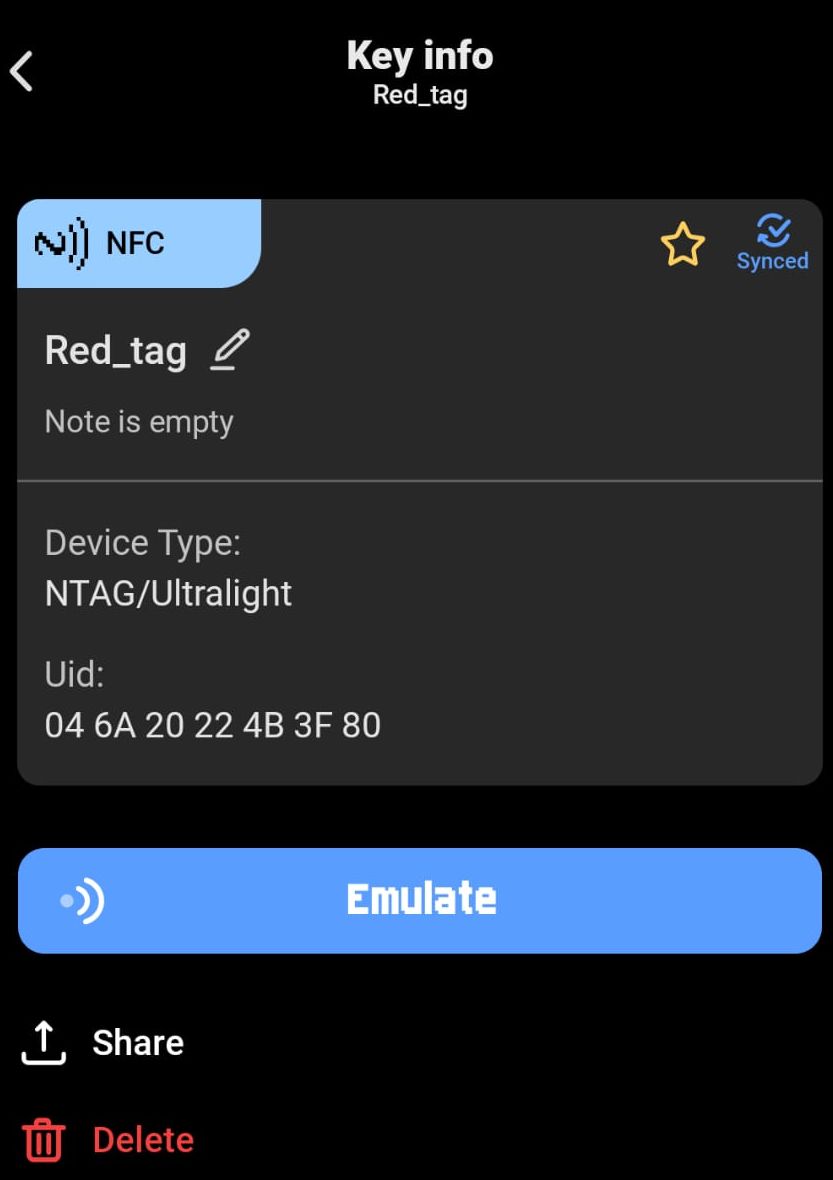
I saved the info into a file on the Flipper, but unfortunately it is not possible to see really any information from the Android app about the read NFC tag:
But opening the saved files in Notepad++ we can see lots of interesting stuff:
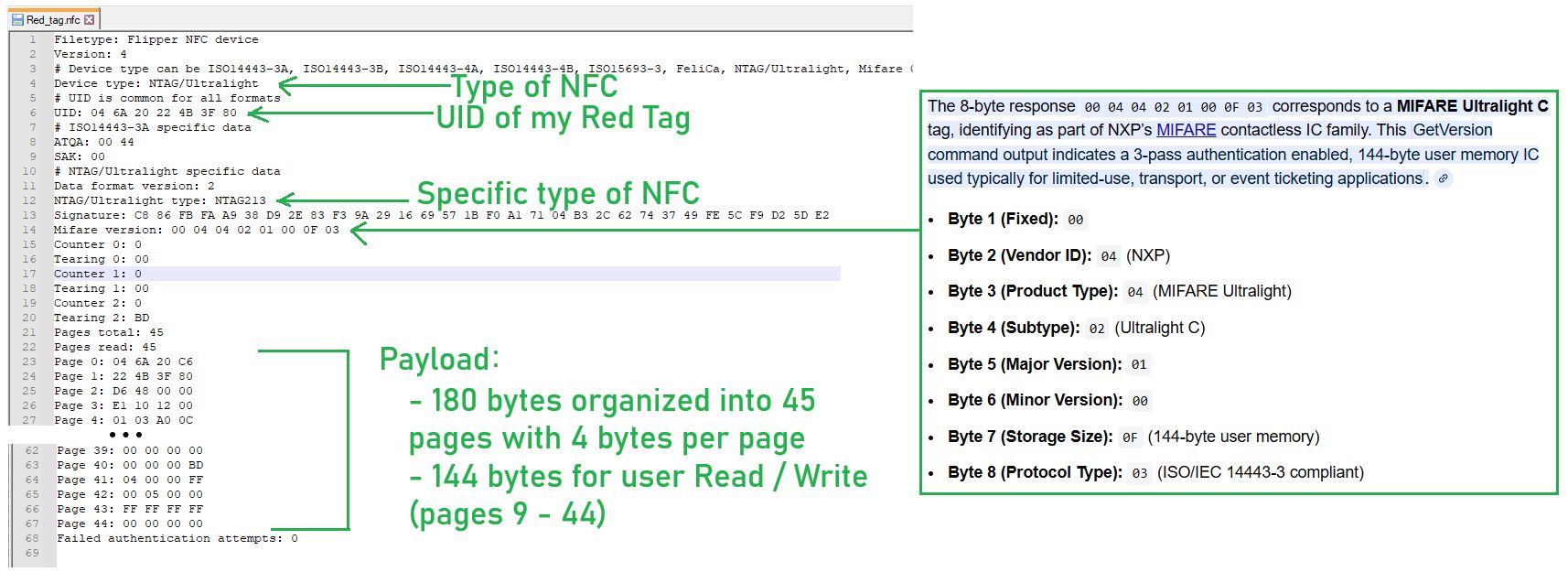
Searching I find that the NTAG213 is a popular, cost-effective NFC Forum Type 2 tag IC developed by NXP Semiconductors (NXP was formally part of the Dutch company Philips and they own the MIFARE brand of integrated circuits), operating at 13.56 MHz, with 144 bytes of user-programable memory, a 7-byte UID and compliant with ISO/IEC 14443A. Interesting!
007: NFC: Write to a NFC Chip
So I thought it would be pretty easy to use the Flipper Zero to write to my red NFC tag, but could not figure out how to do it with the native NFC app nor three applications I found and tested on the Flipper Zero.
Searching the internet I found a post on Reddit from 3 years ago that confirmed that at that time it was not supported natively but was going to be supported: “it’s scheduled right after we complete NFC refactoring(end of this summer)*”.
So I am thinking that maybe if I edit the text file then use the Flipper to write it to the tag?
let’s try!
So I modified Pages 4-39 to FF FF FF FF(reading the NTAG213/215/216 Data Sheet last night before bed I saw that it clearly identified those Pages as user data), copied the file over to the Flipper, and then used the NFC app to write it to the red tag. Now reading the red tag I see that I that the data has in fact been written:
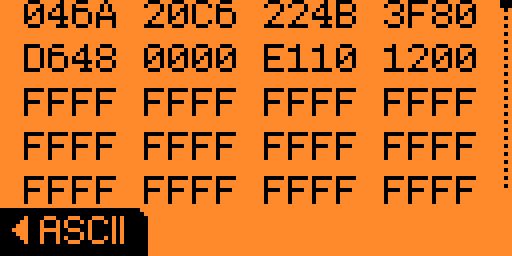
It is not exactly as user friendly as I had thought, but it was in fact possible! Now I wonder if the red tag will ever have all those FF FF FF FF’s over written and used for something useful finally!
008: NFC: reading my work badge
So I read my work badge and was excited to see it was a MIFARE Classic, one that was compromised in back in 2008, so I thought we could use some of the tools to try and crack the keys, but in the end appears that the badge is not using any security cyphers because as we can see here all 32/32 keys were found and all 16 records were read:
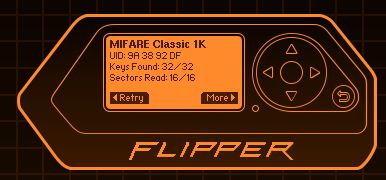
Searching about MIFARE Classic I find this information:
- The MIFARE Classic IC is a basic memory storage device, where the memory is divided into segments and blocks with simple security mechanisms for access control. They are ASIC-based and have limited computational power. Due to their reliability and low cost, those cards are widely used for electronic wallets, access control, corporate ID cards, transportation or stadium ticketing. It uses an NXP proprietary security protocol (Crypto-1) for authentication and ciphering.
Once again the actual saved text file gives some interesting information:
Device type: Mifare Classic
# UID is common for all formats
UID: 9A 38 92 DF
# ISO14443-3A specific data
ATQA: 00 04
SAK: 08
# Mifare Classic specific data
Mifare Classic type: 1K
Data format version: 2
after that the text file has 64 blocks of data:
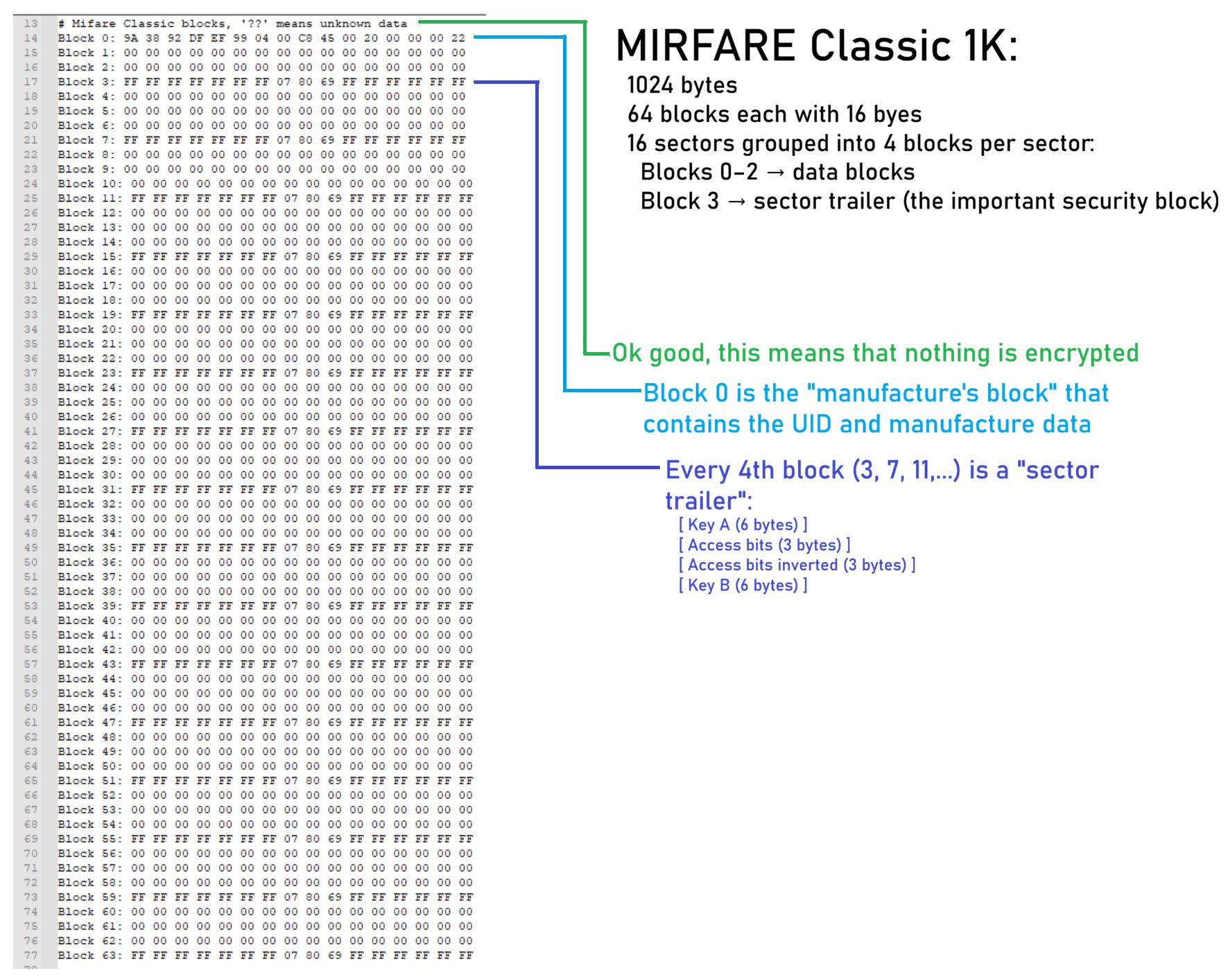
So would we can deduce that no actual data is being used on the card, rather just the UID is associated to me in some database. DISCLAIMER: my lawyer made me obfuscate my UID so no one goes using it to get access to all the secure rooms I have access to!
Well that is neat! I will still have to keep scanning NFC cards to find an encrypted MIFARE Classic to use the build it tools to break the codes!
009: NFC: emulating my work badge
So now that I have a saved file of my badge on my little aquatic mammalian friend, and it does not appear to have any encryption, what about emulating it? If I were to forget my badge could I use it to emulate the badge? Well, I was quite surprised to find out yes!
What you need to do is the following:
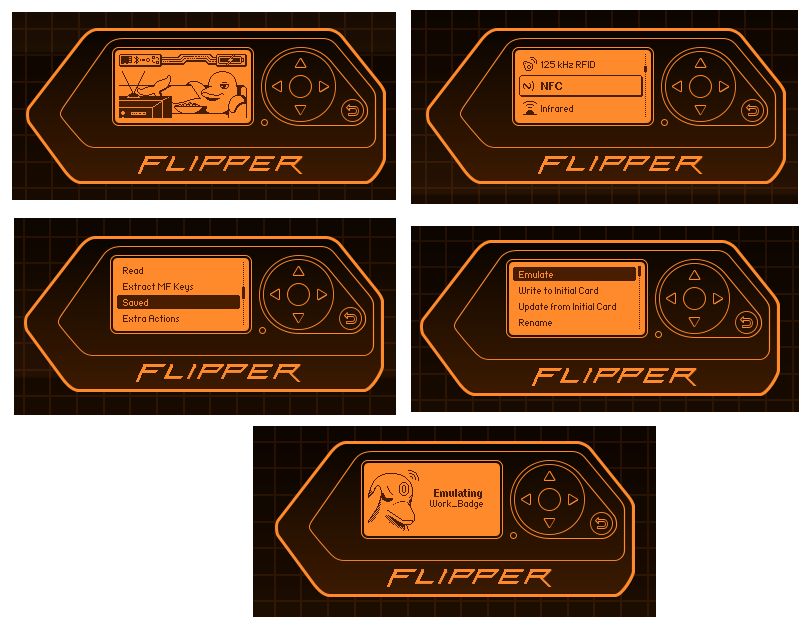
and then holding it up to the turnstile or printer and it beeps and lets me in!
OMG
So this is a good reason to not share your work badge or ever leave it unattended as a simple swipe by swiper the fox and your identity could be supplanted!
010: RFID: my Madrid sport center card
I do not think they continue to issue these cards but have transitioned to using a mobile app, but mine still works and I still think it is so much quicker swiping a card for access to the local sports center than fiddling with my mobile looking for an application then finding the right option (and from the line that forms with people doing this it would seem to support my opinion).
So at first I was unsure if it was an NFC or RIFD card so I scanned via the NFC app then the RFID app and it confirmed it is an RFID card:
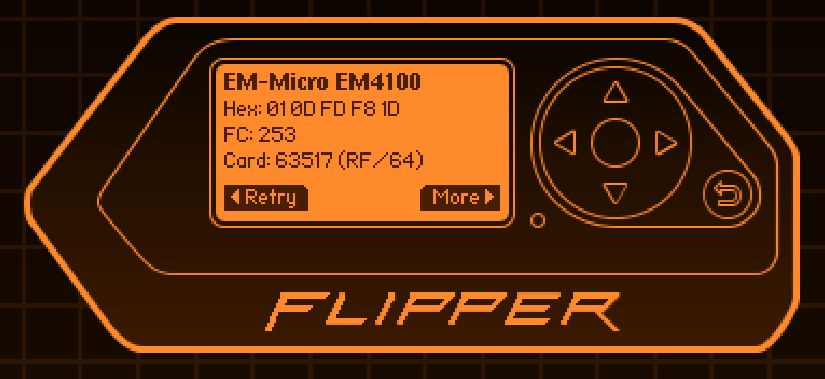
Reviewing the saved file, I see that is is much simpler than an NFC:
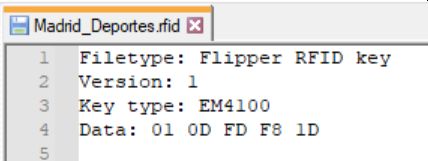
At first I thought the UID (01 0D FD F8 1D) would be the same as the number on the actual card, so I tried all sorts of different conversions but realized it has nothing to do with it, rather it is just a UID because the EM4100 card is a read-only RFID tag. So when the card was issued to me it’s UID is associated to me in some database.
Here is all the information I have found about the EM4100:
- The EM part is for EM Microeletronic, a swiss is a developer and semiconductor manufacturer specialized in the design and production of ultra low power, low voltage integrated circuits for battery-operated and field-powered applications in consumer, automotive and industrial areas. And is a subsidiary of the Swatch Group!
- EM4100 (aka EM4102) card is a 125 kHz read-only RFID tag.
- Total data: 40 bits
- Typically structured as:
- 1 byte “manufacturer / header”
- 4 bytes unique ID
- So in this case:
- 01 : Header
- 0D FD F8 1D: UID
- Interesting things from a data sheet:
- The EM4100 is a CMOS integrated circuit for use in electronic Read Only RF Transponders. The circuit is powered by an external coil placed in an electromagnetic field, and gets its master clock from the same field via one of the coil terminals. By turning on and off the modulation current, the chip will send back the 64 bits of information contained in a factor y preprogrammed memory array.
- The programming of the chip is performed by laser fusing of polysilicon links in order to store a unique code on each chip.
Man my little Flipper buddy just keeps helping me me learn new things!
011: RFID: A card for access to my office in Valencia
This card is the same type of RFID device (EM4100) as described in #0010
012: RFID: A card for access to a communications room in the office
This card is the same type of RFID device (EM4100) as described in #0010
013: Infrared: Kaseikyo protocol
As I mentioned above, one thing I have been using my Flipper regularly for is as a remote control for my Denon radio because I always have the flipper on my desk and it is smaller than the actual remote:
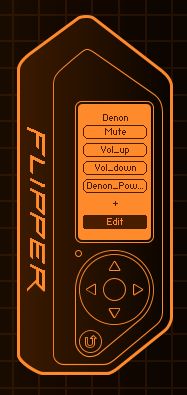
I only trained the Flipper on the buttons I use most regularly.
To create a virtual remote when you already have the physical remote it is very easy: you just put the Flipper into learning mode and point the remote at it and push the button:
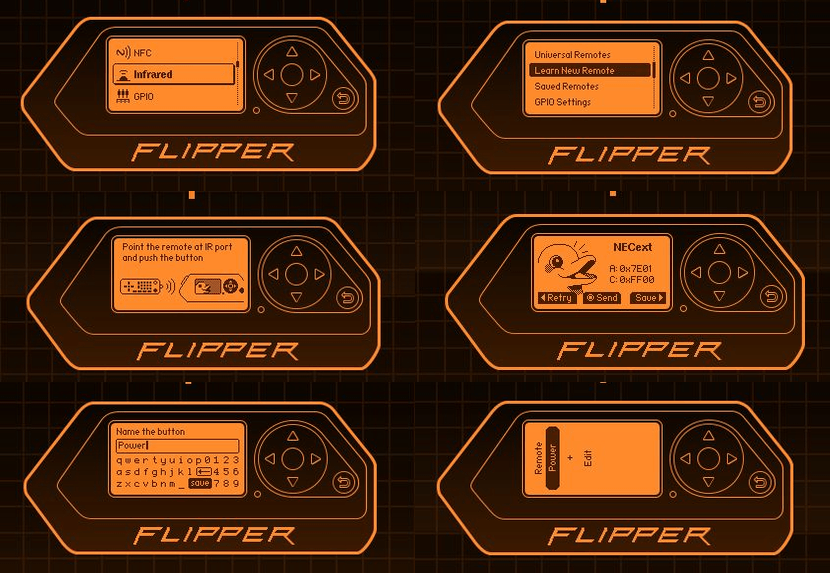
And then do the next button and so on.
If we look at the file it creates for the remote we can see it is really simple:
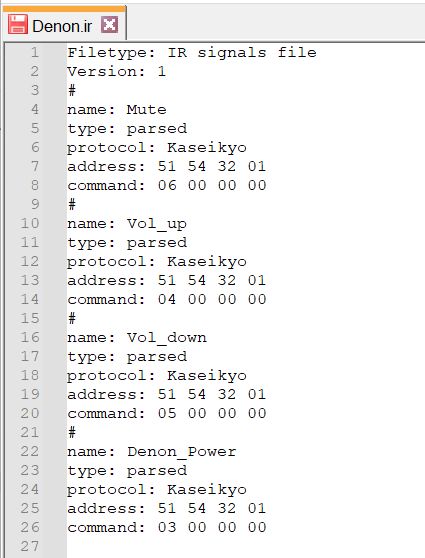
So I asked ChatGPT to tell me about the Kaseikyo protocol and here are some interesting things about it:
- Kaseikyo IR protocol:
- Developed by Matsushita (Panasonic)
- Used by:
- Panasonic
- JVC
- Sharp
- Denon <—— yep that is the model of my radio!
- Mitsubishi
- Some Toshiba models
- Characteristics:
- typically 37 kHz (sometimes 36–38 kHz)
- uses pulse-distance modulation
- frame length usually 48 bits (longer than NEC’s 32 bits) that includes:
- Manufacturer ID
- Device address
- Command
- Inverted/check bits
- Sites with info:
So seeing how simple the format of the file is, it would appear that it must be very easy to make a remote when you do not have access to the actual physical remote and that is actually really useful and a problem I once had forcing my to buy a remote on E-Bay! But I will leave that exercise to a future test!
014: Infrared: Samsung32 protocol
Continuing with remote control testing I grabbed my Samsung TV remote and learned the most used buttons and then took a look at the .ir definition file:
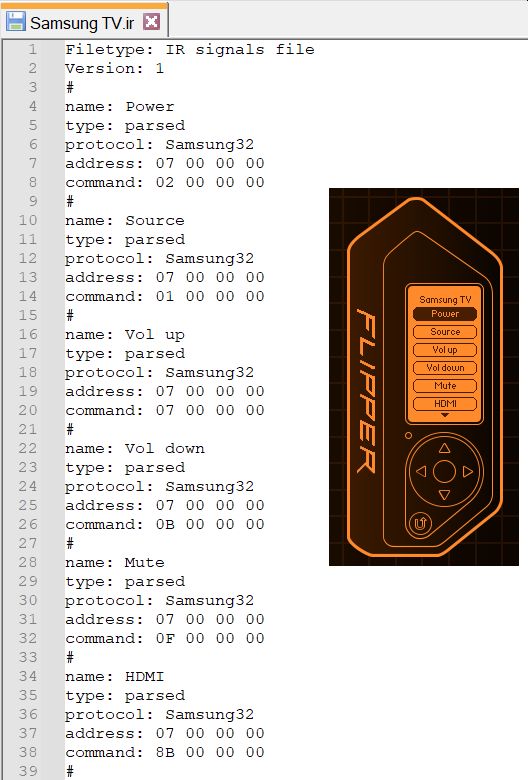
Here we see that the Flipper parsed the infrared signals into a Samsung32 protocol and here is what I could learn about it from the internet, ChatGPT, and Claude:
- Samsung32 IR Protocol:
- Samsung’s classic IR protocol based on NEC
- Has been used on Samsung TVs for over 20 years
- 32 bits total
- 8-bit address (in our example: 07 (with the other 00’s just padding added by the Flipper))
- 07 = typically used with Samsung TVs
- allows for 256 different devices
- 8-bit inverted address (for error checking)
- 8-bit command (in our first button example: 02 (with the other 00’s just padding added by the Flipper))
- that means a max of 256 different commands are possible (0x00 to 0xFF)
- 8-bit inverted command (for error checking)
- 8-bit address (in our example: 07 (with the other 00’s just padding added by the Flipper))
- Based on pulse distance modulation and operates at a 38kHz carrier frequency.
- Timing characteristics:
- AGC burst: 4.5ms mark + 4.5ms space
- Logical ‘0’: 560µs mark + 560µs space
- Logical ‘1’: 560µs mark + 1690µs space
- Repeat codes are sent if you hold the button
- Samsung’s classic IR protocol based on NEC
All this information is proprietary as Samsung just not publish their technical details as are done with standards, so all the decoding that is in the Flipper software is thanks to all sorts of patient people who decoded it and mapped it out and the Flipper Zero is standing on the shoulders of those giants!
015: Infrared: NECext protocol
Next I tested a remote for a Nokia Digital TV decoder (yes Nokia!) and found yet another different protocol used:
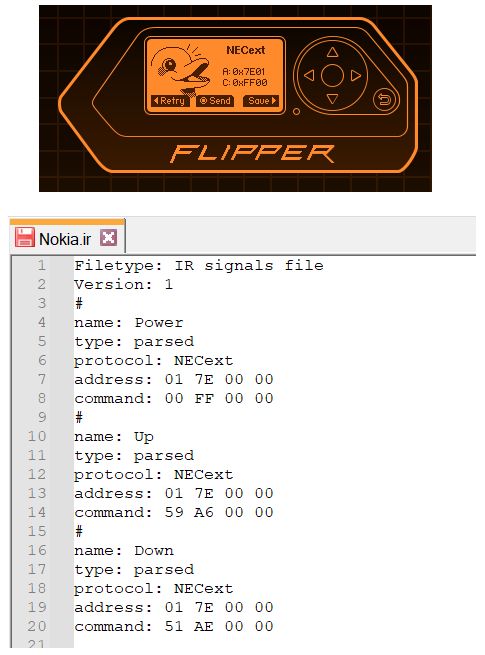
- NECext IR Protocol:
- NECext is an extended version of the classic NEC infrared protocol. NEC is one of the oldest and most widely used IR protocols, originally developed by NEC Corporation in Japan.
- 32 bits total:
- 16-bit address (low byte + high byte)
- Whoa nelly this allows up to 65,536 different devices without having a conflict ()
- 8-bit command
- 8-bit inverted command
- 16-bit address (low byte + high byte)
- Carrier frequency: 38kHz
- Timing characteristics:
- AGC burst: 9ms mark + 4.5ms space
- Logical ‘0’: 562.5µs mark + 562.5µs space
- Logical ‘1’: 562.5µs mark + 1687.5µs space
Interesting! Especially comparing against the Samsung32 as both are 32 bit protocols but use them differently:
- Samsung32: Uses error checking on both address AND command (8+8+8+8)
- NECext: Sacrifices address error checking to get more unique addresses (16+8+8)
Samsung32: 256 addresses × 256 commands = 65,536 total combinations
NECext: 65,536 addresses × 256 commands = 16,777,216 total combinations
So NECext can support way more devices without address conflicts, which is why it’s popular for generic remotes and devices that might be used in environments with many IR devices.
Both are “32-bit protocols” but use those bits differently!
016: Infrared: SIR20 protocol
So the next remote I grabbed from my entertainment console was for a Sony BDP-S1700 Blu-Ray player and I was suprised to find yet another new protocol:
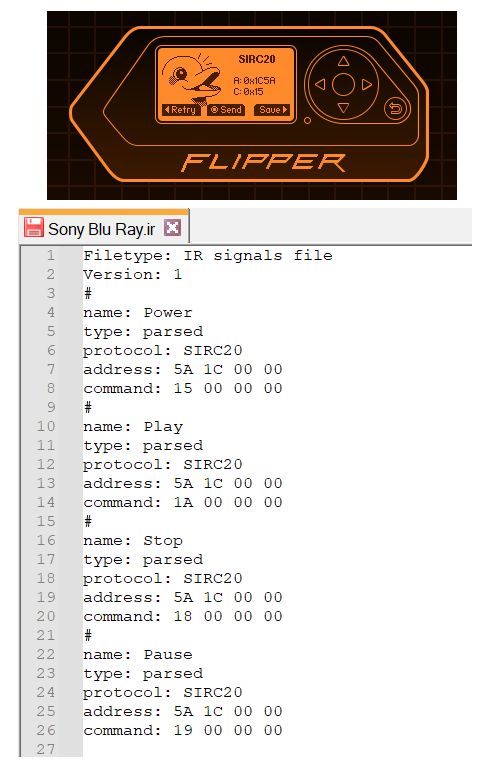
- SIR20 IR Protocol:
- SIRC20 stands for Sony Infrared Remote Control - 20 bit version. Sony actually has THREE different SIRC variants:
- SIRC12 (original TVs and basic devices)
- SIRC15 (more devices needed)
- SIRC20 (modern devices like Blu-ray, PlayStation, complex AV gear)
- 20 bits total:
- 13-bit address (extended address)
- wohah. we are in new territory here of not using normal byte sized values!
- this is read little-endian 16-bit (0x1C5A), then taking 13 bits (1 1100 0101 1010))
- 7-bit command
- as is only 7 bits only allows for 0x00 to 0x7F and therefore is limited to 128 different commands
- 13-bit address (extended address)
- Carrier frequency: 40kHz (most others use 38kHz!)
- Timing characteristics:
- AGC burst: 2.4ms mark + 600µs space
- Logical ‘0’: 600µs mark + 600µs space
- Logical ‘1’: 1.2ms mark + 600µs space
- Frame repeats: Sony sends the frame 3 times for each button press (built-in redundancy instead of inverse checking)
- Interesting things:
- use of 13 bits and 7 bits!
- No error checking, rather send it three times!
- 40kHz when everything else has been 38kHz!
- SIRC20 stands for Sony Infrared Remote Control - 20 bit version. Sony actually has THREE different SIRC variants:
Man, remote controls are like a box of chocolates! you never know what you are going to get!
017: Infrared: NEC protocol
And the last remote I had in my entertainment console was for an ICON LED Projector (only cost 40€ and coupled with the screen I have for slide shows makes for great movie night):
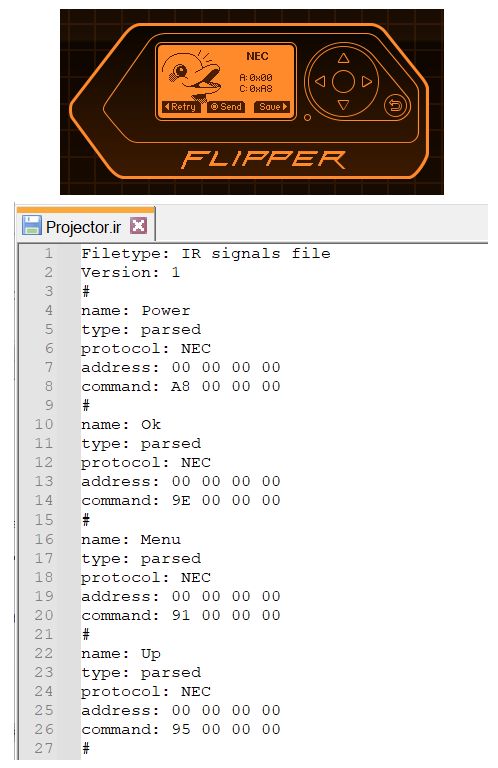
- NEC IR Protocol:
- NEC is the standard, the original, and non-extended version. This is one of the most common IR protocols worldwide, especially popular with Chinese manufacturers and budget electronics (like my projector!)
- 32 bits total:
- 8-bit address
- here it is interesting to note they did not even bother with an address (0x00) so the possibility of conflict with other devices is rather high!
- 8-bit inverted address (error checking)
- 8-bit command
- 8-bit inverted command (error checking)
- 8-bit address
- Carrier frequency: 38kHz
- Timing characteristics:
- AGC burst: 9ms mark + 4.5ms space
- Logical ‘0’: 562.5µs mark + 562.5µs space
- Logical ‘1’: 562.5µs mark + 1687.5µs space
Funny that the last remote I tested from my entertainment devices uses the original first standard!
018: Infrared: raw
The next remote I tried was for a Daikin air conditioner and reading the ON/OFF button yielded something quite different:
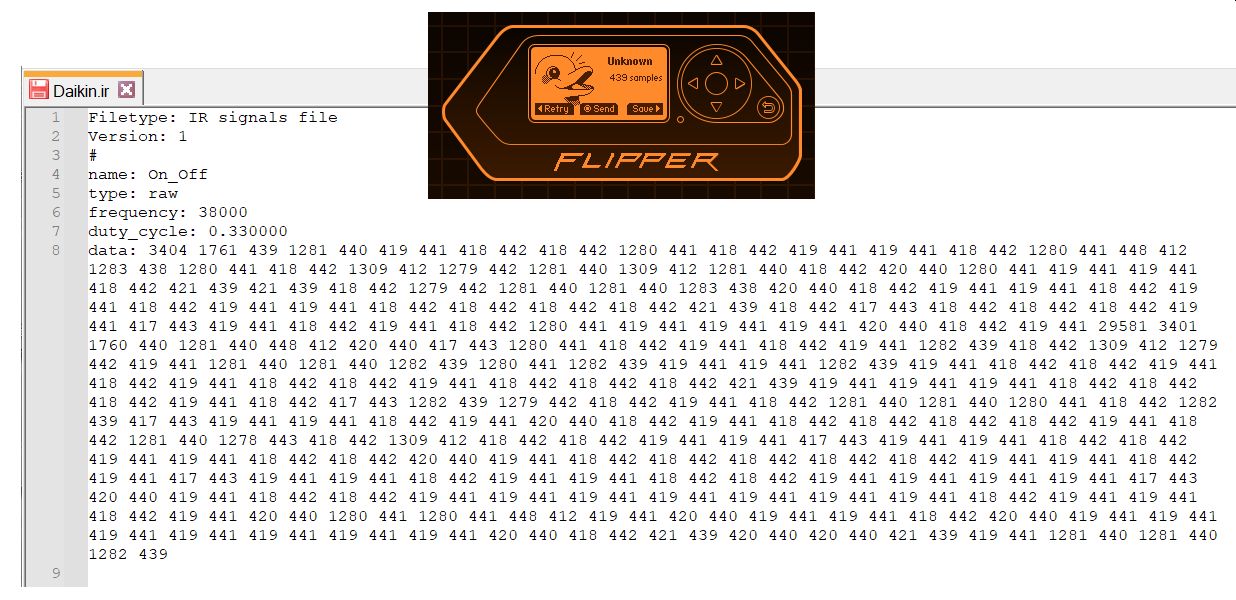
It was not able to decode the signal against any of the known patterns and can just tell us the frequency (38000), duty cycle (0.33000), and 439 samples!
Searching around it quickly becomes clear that the problem is that these AC remotes tend to be different than TV remotes in that they have a screen where you can see the currently programmed temperature, fan settings, etcetera and every time you push a button it actually sends all those settings in a big package (in this case 439 sample package)!
So I saved an “on” sample with all my favorite settings (24º, low fan, night time mode) and it appears to work turning my AC on. I then saved a “powerful” sample (puts the AC on turbo for 10 minutes or so) and it also works. And lastly I saved an “off” sample and confirmed it turns off the AC so in a pinch if I loose the remote I can at least turn it on to 24º, put it in powerful mode, and turn it off when needed!
019: NFC: EMV contactless payment card
Back to testing NFC cards! The first is what I will call Bank Card 1 and note the UID has been obfuscated as we are getting in a sketchy realm posting any real information about a bank card on the internet:
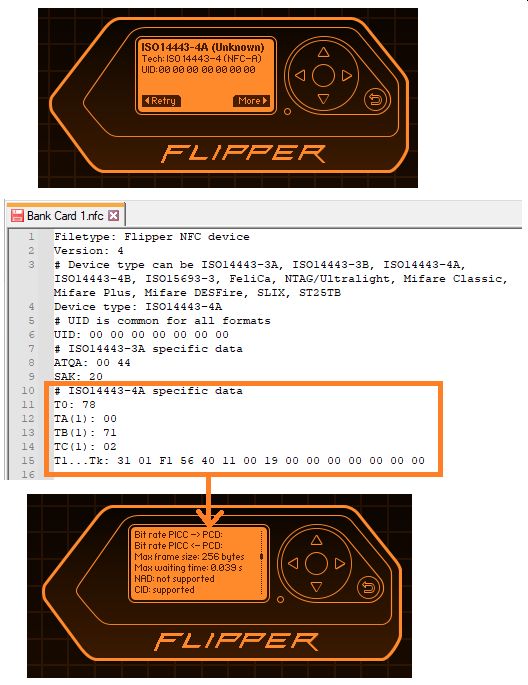
A conversation with Claude AI revels this information:
- EMV contactless payment card:
- EMV is a payment method based on a technical standard for smart payment cards and for payment terminals and automated teller machines which can accept them. EMV stands for “Europay, Mastercard, and Visa”, the three companies that created the standard.
- Card Technology
- Type: ISO14443-4A (standard for contactless payment cards)
- Protocol: EMV contactless (indicated by the SAK value of 0x20)
- UID: 00 00 00 00 00 00 00 (7-byte random UID, typical for payment cards)
- Technical Details
- ATQA: 00 44 - indicates ISO14443-4 compliance
- SAK: 20 - confirms this is an ISO14443-4A card (not Mifare Classic)
- The card uses cascade level 2 (7-byte UID) for enhanced security
Fortunately the Flipper is not able to clone this card because it is unable to get access to the cryptographic keys that the EMV card use for dynamic authentication (each transaction generates unique cryptographic tokens) and is just showing the basic information it is able to decode.
020: NFC: Bank Card 2
This card another bank card but from a different bank but I see it is using the same EMV contactless technology we saw in #0019
021: NFC: Mifare DESFire
The next card out of my wallet is my Community of Madrid transportation card. This works by being able to add up to 10 rides on it, and to my knowledge there is no additional features like a virtual wallet that I have heard used in other transportation agencies.
Wow this file contains a lot more data than any we have seen so far:
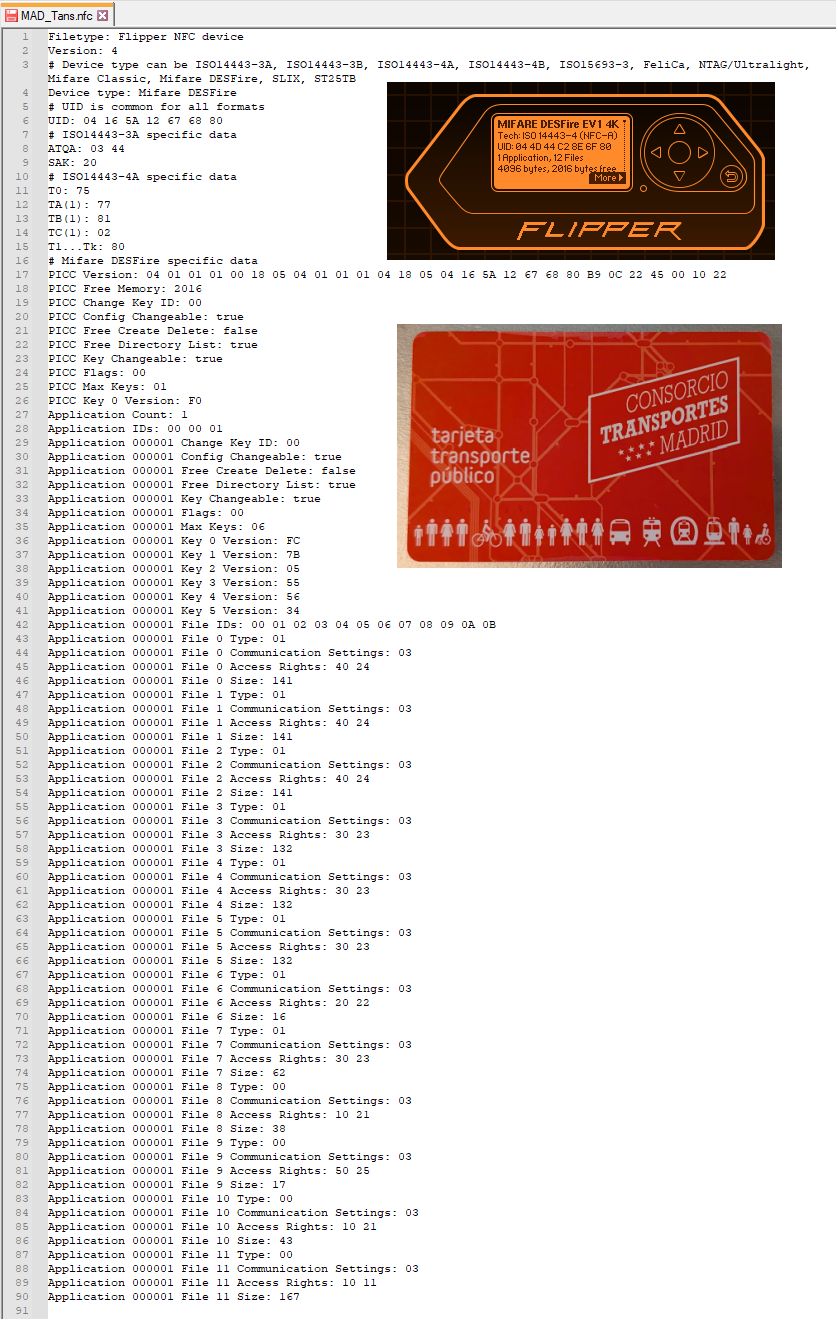
- Mifare DESFire:
- NXP Mifare DESFire Data Sheet
- Memory: has 2016 bytes available (out of 4KB total)
- Has 1 application with ID 000001:
- 6 Keys (0-5)
- 12 files total:
- Files 0-2 (Standard Data Files)
- Size: 141 bytes each
- Type: 01 (Standard Data File)
- Communication: 03 (Fully encrypted)
- Access Rights: 40 24
- Read: Key 4, Write: Key 2, Read/Write: Key 4
- Likely transaction history (last trips, entries/exits)
- Files 3-5 (Standard Data Files)
- Size: 132 bytes each
- Access Rights: 30 23
- Different key permissions than files 0-2
- Additional transaction logs or season pass data
- File 6 (Standard Data File)
- Size: 16 bytes
- Access Rights: 20 22 (different permissions - likely read-only data)
- Possibly card serial number or card type identifier
- File 7 (Standard Data File)
- Size: 62 bytes
- Access Rights: 30 23
- Files 8, 10, 11 (Backup Data Files)
- Type: 00 (Backup Data File)
- Sizes: 38, 43, 167 bytes
- These files support transactional operations (atomic read/write)
- Backup structures for critical data
- File 9 (Backup Data File)
- Size: 17 bytes
- Access Rights: 50 25
- Possibly stores your current balance or trip counter
- Files 0-2 (Standard Data Files)
The actual data in the files is not readable (or writeable) without the proper keys: “DESFire is used for high-security applications like metro systems - even with complete knowledge of the file structure, you can’t access or modify the actual data without the secret cryptographic keys held by the transit authority”. Good to know that it is not possible to swindle the amazing Madrid public transit system!
022: Infrared: RC6
I found another remote to test at work from a Phillips and was excited that it was decoded as RC6, something I have not yet seen!
Let’s take a look:
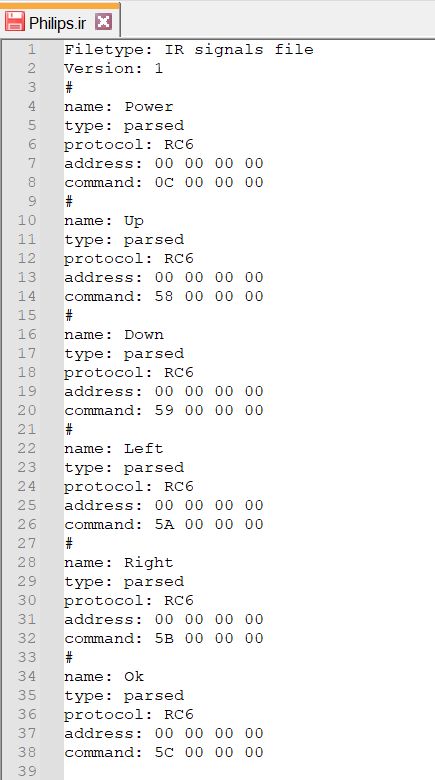
- RC6 IR Protocol:
- The Remote Control 6 (RC6) protocol was developed by Philips in the 1990’s and is used in set-top cable/satellite boxes, Windows Media Center remotes, Sky, Virgin Media and Foxtel boxes, and Phillips devices
- Uses Manchester Encoding for implicit error detection: every single bit must contain both a mark and a space — a transition in the middle of every bit period. Invalid sequences immediately reset the Manchester decoder. This means if noise corrupts a bit in a way that produces an impossible timing pattern — for example, a flat signal with no mid-bit transition — the receiver will reject the entire message outright.
- Carrier frequency: 36kHz
- Timing characteristics:
- Leader (AGC) burst: 2,666µs mark (6T) + 889µs space (2T)
- Normal bit ‘0’: 444µs space (1T) + 444µs mark (1T)
- Normal bit ‘1’: 444µs mark (1T) + 444µs space (1T)
- Toggle/Trailer bit ‘0’: 889µs space (2T) + 889µs mark (2T)
- Toggle/Trailer bit ‘1’: 889µs mark (2T) + 889µs space (2T)
- Signal free time (end gap): 2,666µs (6T)
- Carrier frequency: 36kHz
- Base time unit (1T): 444µs
Wow a different IR protocol totally different from the others we have seen up until this point! I think with this one we have seen all the protocol’s that the Flipper supports with the native firmware!
023: Sub-GHz: Clemsa E20 Garage Door Opener
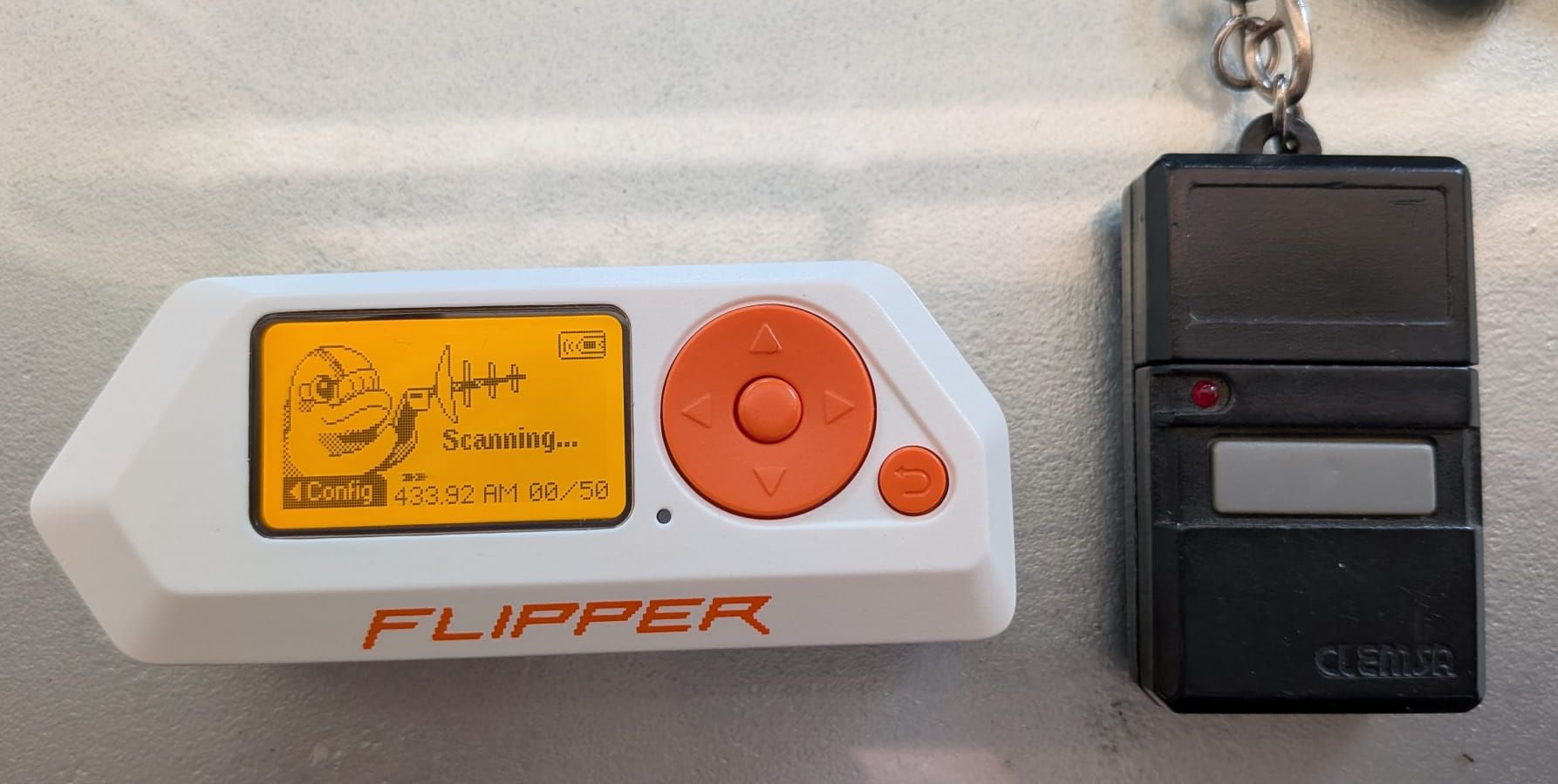
In the Sub-GHz menu there are two options Read:
and Read RAW:
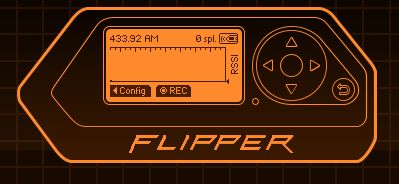
both both detect nothing when I push the remote’s button!
So I think I need to know about what frequencies the CLEMSA remote might be using and see if the Flipper’s antenna supports it as well!
- Clemsa Clemsa E20 specs:
- Frequency: 286 MHz
- This is distinct from modern remotes, which usually operate at 433 MHz or 868 MHz.
- Protocol: binary encoding
- Does not use rolling code
- 8 dip switches = 2^8 = 256 different combinations
- No longer in producion
- Frequency: 286 MHz
Hummm so would appear that the Flipper does not support this frequency as lowest it will go to to 315 MHz. Oh well!
024: Sub-GHz: Clemsa MT-1 Trinary Garage Door Opener
Found another Clemsa garage door opener that is a different model (MT-1) to test with.
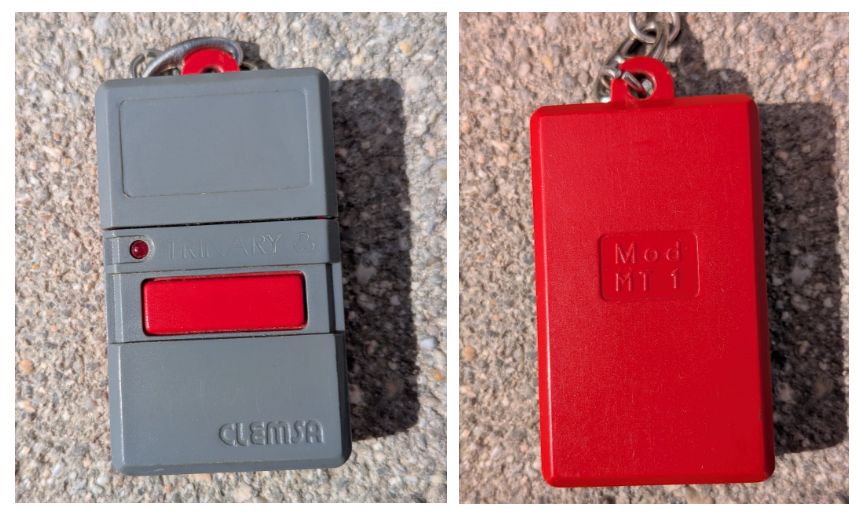
Let’s search on it specs and see if it is supported:
- Clemsa Clemsa MT-1 Trinary specs:
- Frequency: 287 MHz MHz
- Protocol: Trinary encoding
- uses 3 states instead of binary: 0, 1, F (floating/open)
- this allows for more combinations with fewer switches
- 3^8 = 6,561 combinations (where 2^8 = 256)
Holy cows! never heard of trinary encoding by sure enough each of the switches has three positions:
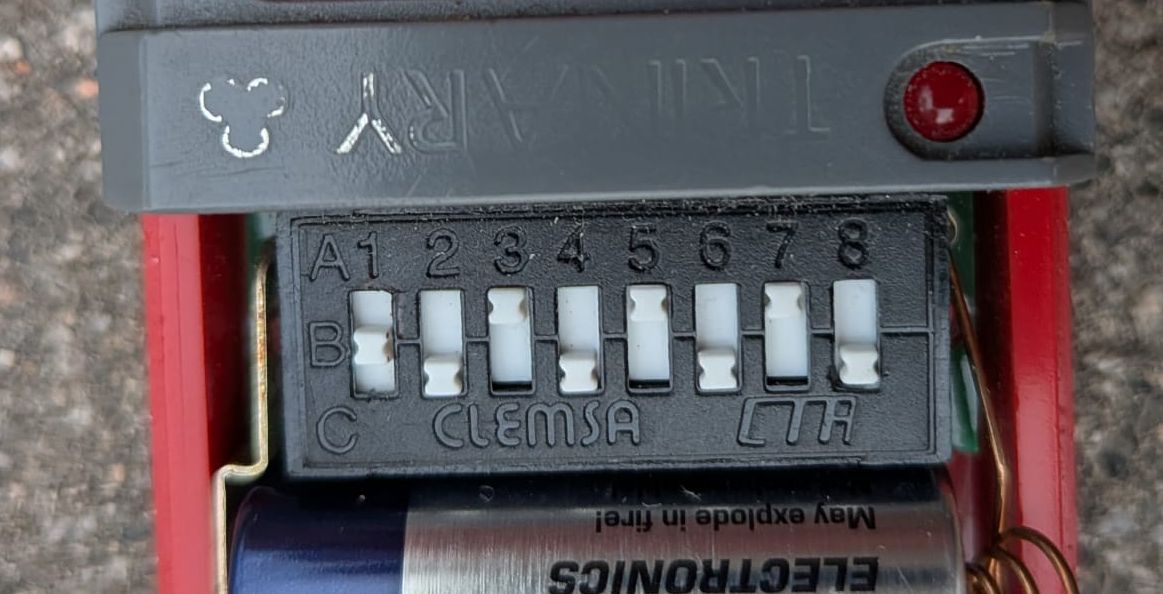
Flipper was not able to read this one either, but at least we learned something new!
025: GPIO: UART connection to Raspberry Pi
So I have to admit there have been times when I have not had a monitor and have had problems connecting to a Raspberry Pi to see what the heck was going on so I find that the Flipper can be used as a UART (universal asynchronous receiver-transmitter)-USB bridge is super cool and useful.
UART basically gives a serial connection to a device, so once you identify the TX, RX, and GND pins you can wire up the Flipper, figure out what serial port the Flipper is using by watching the Ports section of Device Manager when connecting the Flipper, and then using PuTTY to connect to that serial port:
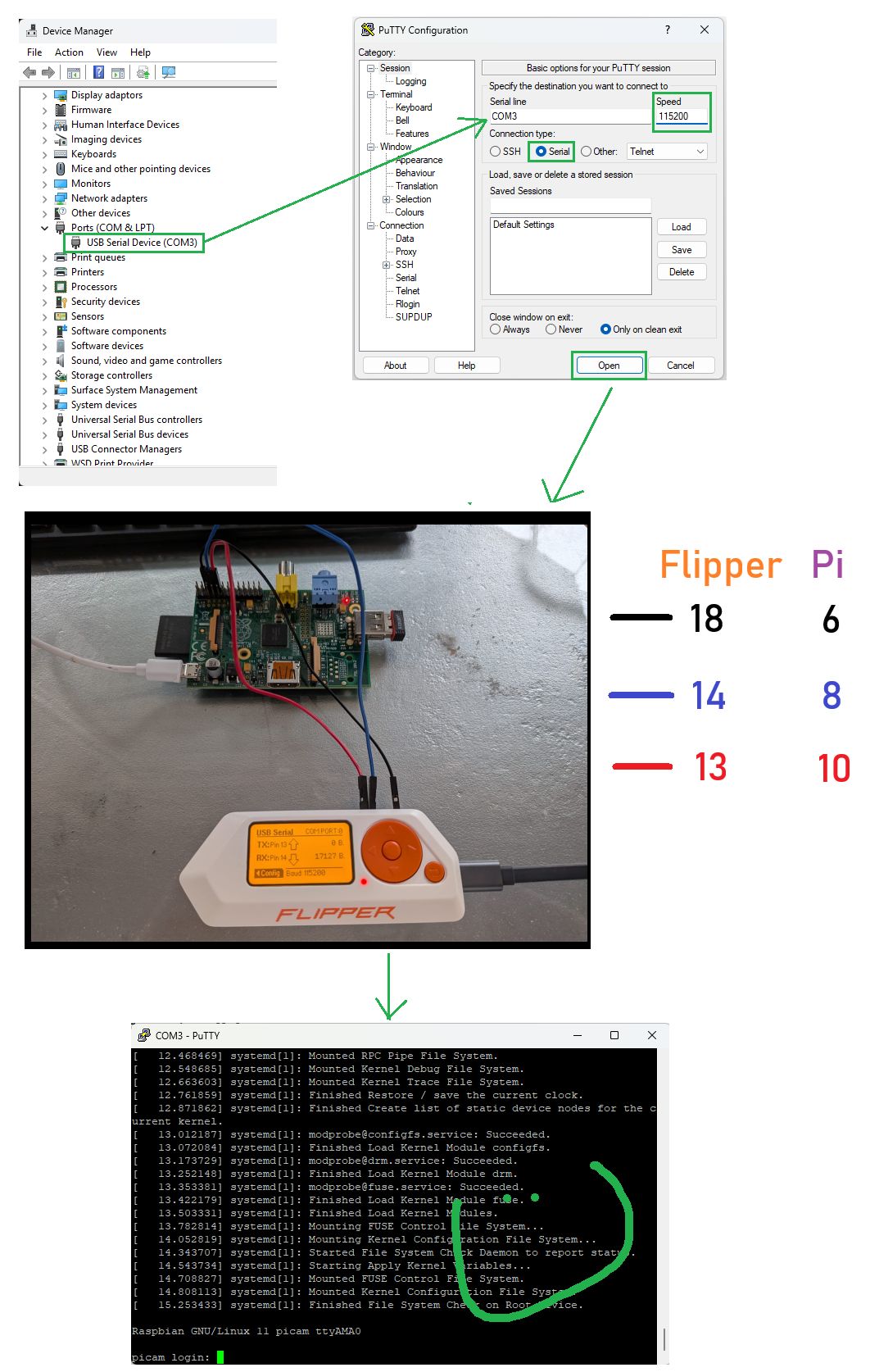
And you have a serial connection to the Raspberry Pi with no monitor! This would have been useful if I could have figured out the UART pins on a Samsung Blu Ray player that I had that had bricked itself in the summer of 2020 after it downloaded a incorrectly formed XML file.
026: Infrared: Universal Remotes: TV
In addition to being able to learn and load saved infrared remote controls, the Flipper Zero comes preloaded with 4 universal remotes:
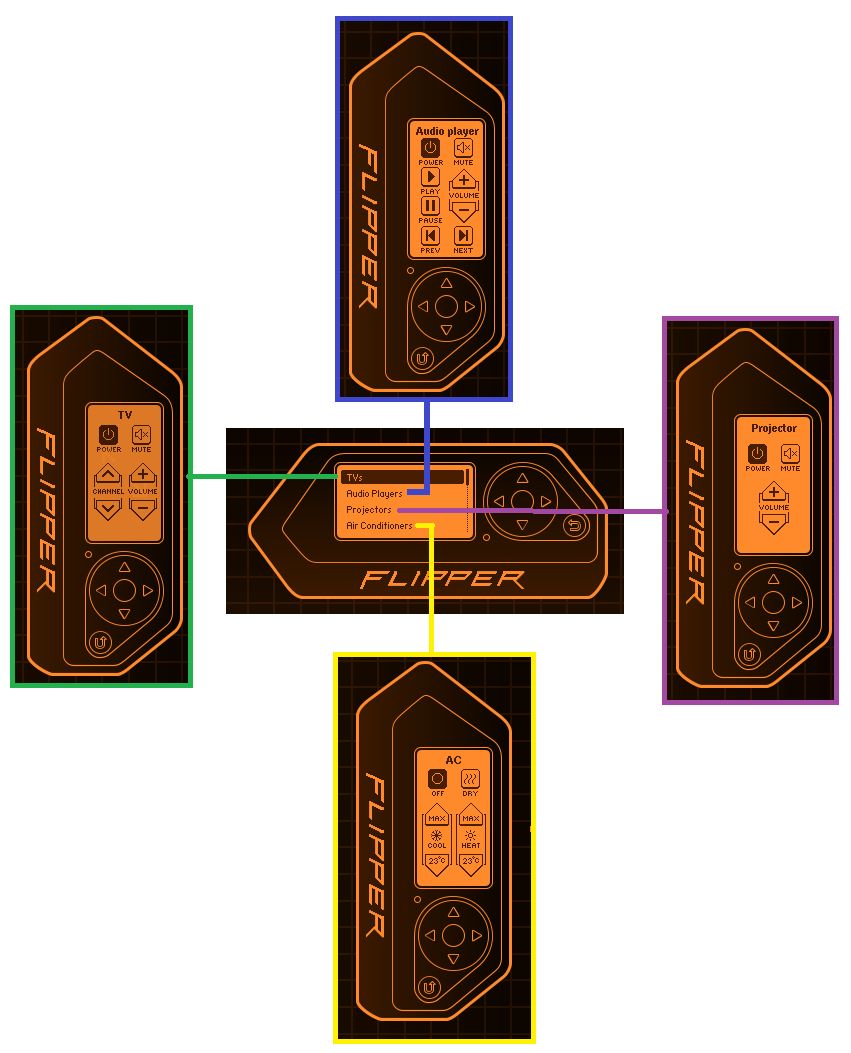
I was going to write only one post about these universal remotes but seeing how we are only at 26 different things I will milk this for as many different uses possible and first discribe results testing with the TV one.
How it works is that once you push a button it begins sending all the known codes for that button and once it works you hit the back button to stop sending:
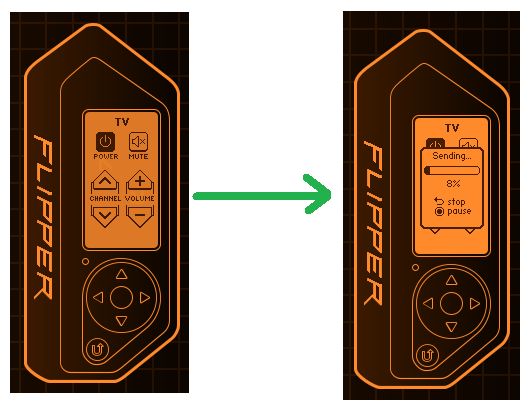
kinda brute force but works great in testing with multiple TVs that I have found and tested against!
027 Infrared: Universal Remotes: Audio Player
I tested the audio player universal remote against my Denon and the results were mixed:
- Power: worked
- Mute: worked
- Play: did not work
- Pause: worked
- Volume up and down: worked
- Prev / Next: just advanced 10 seconds, did not skip to the next track
So in a pinch works, but would be better to make your own remote like I did for my Denon.
028 Infrared: Universal Remotes: Projector
place holder until I find a projector to test!
029 Infrared: Universal Remotes: Air Conditioners
I tested this against my Daiken and did get it to beep but it did not turn it on or allow me to control it.
Closing
29 down and only 72 to go! Truth be told this little aquatic doggy has so many options that I do not think it will be too hard to get to 101, just will take me a bit of time!
Links, References and things that helped with this
- Flipper Zero specific:
- General:
- NFC related:
- RFID related:
- Infrared related:
Thanks for reading and feel free to give feedback or comments via email (andrew@jupiterstation.net).